
Good news first: the quickest iPhone image to PDF converter is already sitting on your phone. Open a photo in Photos, hit Share, scroll to Print, and pinch outward on the preview. Tap Share once more, choose Save to Files, and you’re done. That whole trip takes maybe ten seconds. No app to install, no account to create, nothing uploaded anywhere. Got a stack of images or a paper form instead? The Files app and Notes can handle those, and we’ll walk through all three.
Type “image to PDF” into the App Store or Google and you’ll mostly find subscription apps and websites with upload queues. Plenty of the “free” ones only let you convert one file a day. Others slap a watermark on the result. Some quietly ship your photos off to a server you’ve never heard of, which is a real problem when the picture is your passport, a signed lease, or a bank statement. Apple’s built-in option works fine. It’s just tucked behind a Print button that doesn’t exactly scream “make a PDF here.”
Here’s how this guide is laid out. A short prep section helps you pick the right method. After that come four steps: the Files app, Print in Photos, Notes, and then the cleanup work of compressing, merging, and sending. Full disclosure, we’re the team behind xyconvert, a set of free browser tools that process files on your own device. So yes, the finishing tips lean toward methods that keep your files private.
What you need before you convert
All it takes is an iPhone on iOS 15 or later plus the photos you want to turn into a PDF. Apple bakes the PDF maker right into the system. Still, a couple of minutes of prep is what separates a clean document from one that’s cropped, bloated, or shuffled out of order.
Does the iPhone have a free PDF converter?
It does. Actually, it has three, and none of them need a download: the Files app, the Print option in Photos, and Scan Documents in Notes. Each produces a standard PDF that opens on any iPhone, Android phone, Mac, or Windows PC. One catch: the Create PDF shortcut in Files showed up with iOS 15. On anything older, stick with the Print method.
Pick the method that fits the job
Which one should you use? That mostly comes down to how many images you’re dealing with and whether you’re working from photos or actual paper. Here’s a side-by-side look.
| Method | Best for | Several images at once | Internet needed |
|---|---|---|---|
| Files, Create PDF | Quick one-offs and small batches | Yes | No |
| Photos, Print | One photo, or a multi-page PDF from a selection | Yes | No |
| Notes, Scan Documents | Paper documents, receipts, forms | Yes, one page per scan | No |
| Third-party app | Daily editing, signing, page reordering | Usually | Depends |
| Online converter | Using someone else’s device | Usually | Yes |
Not sure? Go with Files. Of the three built-in options, it’s the one that behaves the same way every time.
Check your photos first
Think of a PDF as a frame. It holds your image exactly as it is and won’t make it any better. That’s why it pays to fix problems in Photos before converting, since editing there is far easier than wrestling with a finished PDF. By default your iPhone saves pictures as HEIC files, and every built-in method reads that format with no extra fuss.
Quick checklist before you start:
- Crop and straighten each shot using Edit in Photos.
- Rotate any sideways pictures so the page reads upright.
- Delete blurry duplicates. Every photo turns into its own page.
- Ask yourself whether the content is sensitive, because that should shape which tool you pick.
When an app or online converter makes sense
If you reorder pages, sign forms, or run OCR on documents every single day, a third-party app can be worth it. Just know what you’re signing up for. Free tiers often limit tasks per day, add watermarks, or nudge you hard toward a subscription. And online converters have to upload your file to their server before they can do anything with it.
So for driver’s licenses, tax forms like a W-2, and bank statements, don’t upload. Use the built-in methods, which never let the file leave your phone.
With anything sensitive, a converter that never uploads your file beats one that promises to delete it later.
Step 1. Create a PDF in the Files app
Long-press, tap a menu item, and Files turns one image or a whole bunch of them into a PDF. For small batches, it’s the most dependable iPhone image to PDF converter you’ve got, and it doesn’t need a signal. The one requirement? Your images have to be saved in Files first.
Save your photos to Files
Until your photos live in Files, the Create PDF option won’t show up. You’ll only need to do this once per batch:
- Open Photos and tap the image you want. Picking several? Tap Select, then tap each photo.
- Hit the Share icon.
- Scroll down the share sheet until you see Save to Files, and tap it.
- Pick a folder, like On My iPhone or iCloud Drive, then tap Save.
Honestly, it’s smart to make a dedicated folder for each batch. When everything’s in one spot, selecting it all in the next step is painless.
Turn the images into a PDF
Now open Files and track down the image you saved. If it’s just one, press and hold the file, go to Quick Actions, and tap Create PDF. Your new PDF pops up in the same folder, right beside the original.
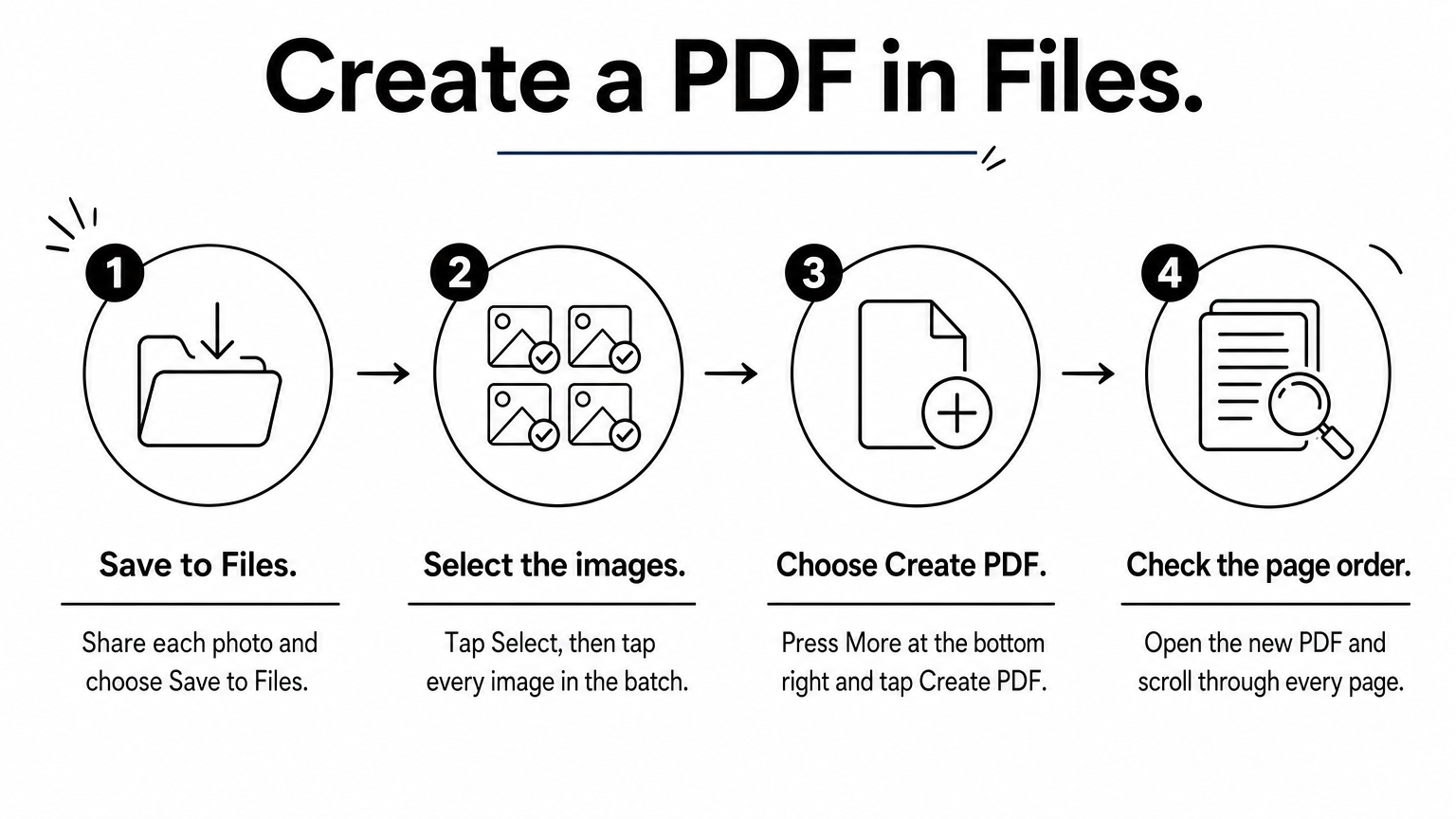
Working with multiple images is a little different. Tap the More button (the three dots in a circle) up in the top right and choose Select. Tap every image you want, hit More again at the bottom right, and pick Create PDF. Out comes a single PDF with one page per image. Before sending it to anyone, open it up and scroll through to make sure the pages landed in the right order.
Rename the file and know the limits
Your new PDF borrows the image’s file name, which usually means something forgettable like IMG_4821. Press and hold it, then tap Rename. Trust us, a clear name saves you a search later. “lease-signed-page-1” beats a string of numbers every time.
What Files won’t give you is any say over page size, margins, or order. A JPG to PDF converter in your browser can. Spot a page that looks off? Delete the PDF, fix the original image, and convert again. And if margins are what’s bugging you, the Print method in the next step gives you a bit more control.
If the images are already in Files, Create PDF is the shortest path from photo to document.
Step 2. Use Print in Photos for a quick PDF
You don’t even have to leave Photos to get a PDF. Inside the Print screen, a simple pinch outward on the preview makes iOS swap it for a real PDF you can save. Got one photo and zero time? This is the fastest way to use your iPhone as an image to PDF converter.
Make a PDF from a single photo
Here’s the sequence:
- Open the photo in Photos.
- Tap Share, scroll down a bit, and choose Print.
- Put two fingers on the page in the print preview and pinch outward to zoom in.
- A Share icon now shows up in the top right. Tap it.
- Choose Save to Files, pick a folder, and hit Save.
Pinch not doing anything? Spread your fingers wider and go slower. The preview has to read the gesture as a zoom on the page itself, and that Share icon won’t appear until the PDF view actually opens. On some newer iOS versions, you may also see a Share option right on the print screen, which skips the pinch entirely.
Build a multi-page PDF from several photos
Select your photos before you begin. In Photos, tap Select, tap each image, and then go to Share and Print. You’ll see one page per photo in the preview. It’s worth taking a second to check the page order before you pinch out. Pages follow the order your photos sit in the library, and rearranging them afterward is a pain.
Pinch out on any page and the full PDF opens. From there, it’s Share and Save to Files, same as before. Twenty photos take roughly as long as one, so this route is perfect for a pile of receipts or whiteboard shots from a single meeting.
Fix pages that look off
Print drops each image onto a standard page, which on US iPhones is typically Letter size. A very wide or very tall photo can end up with empty bands along the edges as a result. The fix is easy: crop the photo to a page-like shape first, under Edit and Crop in Photos. A 4:3 crop fills the page nicely.
Did your saved PDF open as a blank page? Reopen it from Files and run through the steps again. Nine times out of ten, the culprit is saving while the preview was still stuck loading.
Print is not a printer here, it is the quickest door to the PDF engine inside iOS.
Step 3. Scan paper or photos in Notes
Scan a document in Notes and you get a PDF right away. Notes can also turn photos you’ve dropped into a note into a PDF. For paper, though, think forms, receipts, and letters, it’s the clear winner, because the scanner flattens and crops each page on its own. No other built-in iPhone image to PDF converter tidies up the picture like that.
Scan a paper document into a PDF
Every scan you make in Notes is a PDF from the very start. Here’s how it goes:
- Open Notes and start a new note.
- Tap the camera icon (a paperclip icon on newer iOS versions) and choose Scan Documents.
- Hold your phone over the page. The camera finds the edges and snaps the shot automatically.
- Need more than one page? Scan more pages, then tap Save.
- Tap the scan inside your note, hit Share, and choose Save to Files.
For the cleanest results, shoot on a dark, flat surface with the light behind you. That way your hand and phone won’t cast a shadow across the page. Before saving, you can also drag the crop corners and flip between color, grayscale, and black and white filters.
Convert photos already inside a note
Sometimes your images are already tucked inside a note, maybe screenshots and photos you saved while planning a trip. In that case, tap the three dots (or the Share icon) and choose Print. Pinch out on the preview just like in Step 2, then save the PDF to Files.
Files actually has a scanner of its own, too. Open Files, head to the Browse tab, tap the three dots in the top right, and pick Scan Documents. Your scan lands in a folder as a PDF, no note required.
For paper, scan it instead of photographing it, because the scanner straightens, crops, and cleans the page automatically.
Step 4. Compress, merge, and share the PDF
You’ve got your PDF. Three things are left: shrink it if it’s too heavy, combine it with others if you need to, and send it off. There’s a solid fix for each, and you won’t need an account for any of them. A good iPhone image to PDF converter workflow ends right here, with a file the other person can actually open and upload.
Compress a heavy PDF before you send it
A dozen full-resolution photos can easily balloon into a PDF weighing tens of megabytes. Gmail caps attachments at 25 MB, and a lot of upload portals, including many government and job application sites, only accept a few megabytes. Hit a limit? Shrink the original photos first, or compress the finished PDF.
At xyconvert.com you’ll find free image compression and resizing, plus a free PDF compressor. Just open the site in Safari and choose a tool. Everything gets processed on your phone and nothing gets uploaded, which matters a lot for IDs and statements. Want proof? Turn on airplane mode once the page has loaded. The tools keep right on working offline.
Merge separate PDFs into one
Made a few PDFs at different times? Combine them into a single file before you send anything. Your best bet is a browser tool that works on the file right where it sits. xyconvert’s PDF merge tool does exactly that, running locally in Safari, and it won’t stamp a watermark on what you get.
What if the recipient wants a JPG rather than a PDF, and your photo is a HEIC? The HEIC to JPG tool takes care of that conversion on your device as well.
Share the finished file and fix common problems
Inside Files, press and hold your PDF and tap Share. Mail, Messages, and AirDrop are all right there. If something’s off, these are the usual suspects:
- Can’t find the PDF: check Recents in Files, or search for “.pdf”.
- Blurry pages: retake the photo in better light. No PDF can add detail that isn’t there.
- Pages in the wrong order: redo your selection in the right sequence, or reorder pages with a browser tool.
- File too big: compress the photos or the PDF, then send it again.
- Blank preview: close it out and run through the Print steps one more time.
A finished PDF is only useful if it opens, fits the upload limit, and looks sharp on the other end.
Pick a method and convert your photos
So there you have it. Your iPhone hides a working image to PDF converter in three different places. Reach for Files when you’ve got a quick batch, Print in Photos when you need one photo turned into a PDF fast, and Notes whenever paper’s involved. Clean up your photos before converting, since a PDF keeps whatever you hand it. Compressing or merging can wait until you actually need it.
For sensitive documents, stick with methods that never upload anything. Apple’s built-in tools work that way out of the box, and so do browser tools that process files on your device. Need to shrink, merge, or tidy up your PDFs and images afterward? Give xyconvert’s free browser-based PDF tools a try. You won’t have to sign up, you won’t get a watermark, and there’s no daily limit.