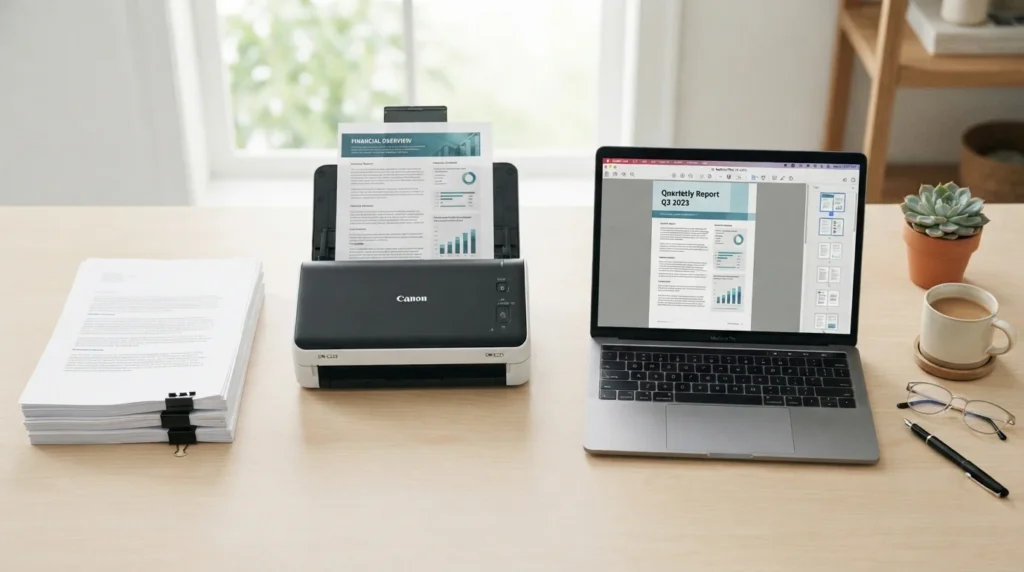
To combine scanned documents into one PDF, scan every page into the same document session when your scanner or phone app allows it. If the pages already exist as separate scans, upload or open them in a PDF merge tool, place them in the correct order, check readability, and save one final PDF.
A single PDF is easier to email, upload, print, archive, and share than a folder full of image files. The key is choosing the right workflow before you start, then reviewing every page before you send it.
Choose the right method first
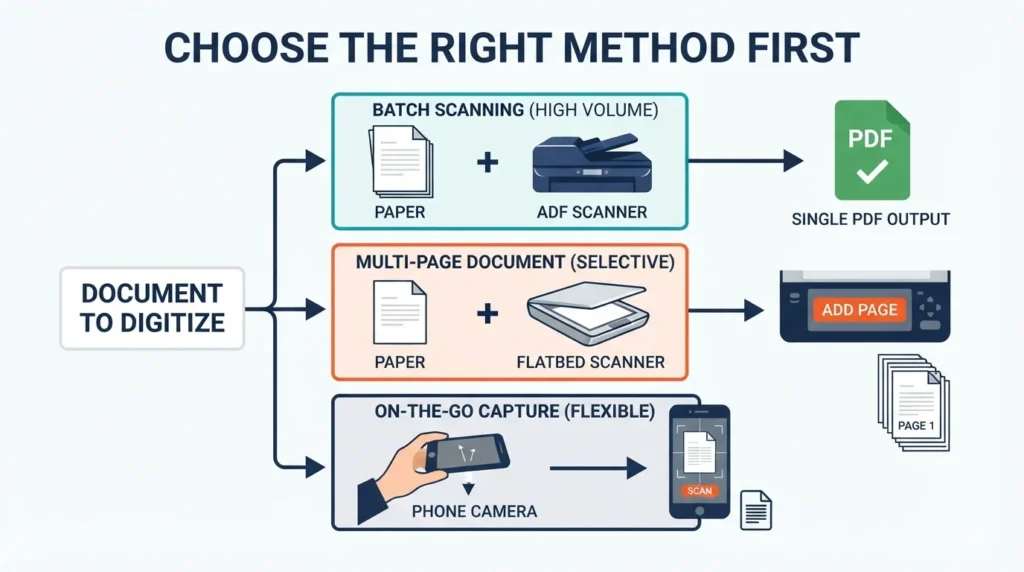
Use this quick decision matrix before scanning. It prevents the common problem of creating 20 separate image files and then trying to reconstruct the document later.
If you are scanning a multi page contract, application, receipt packet, or school form, scanning it as one document from the beginning is usually the cleaner option. PDF scanner software typically labels this setting “multi page PDF,” “save and continue scanning,” “add page,” or “scan more pages.” Epson’s support instructions, for example, tell users to select Add page between scans and choose Done only after the final page.
Method 1: Scan pages into one PDF
This is the best approach if you still have the paper document in front of you.
The reason to review thumbnails before saving is simple: errors are easiest to fix before the pages become part of a final file. A page scanned upside down can make a form look incomplete. A missing back page can delay a job application or an agency submission.
For a phone scan to PDF on iPhone, Apple’s Notes app can capture a page, let you add more scans, and save the result as a PDF in the note. Apple also lets you adjust page corners and retake a page if the capture is unclear.
Method 2: Merge scans you already created
Sometimes the scans already exist as individual PDFs, or as images saved from a phone camera. In that case, you need to merge scans after the fact.
This route is useful for a document scanned over several days, pages sent by different people, or paperwork captured on different devices. NYC.gov’s guidance for combining documents follows the same basic principle: upload multiple PDF files, arrange them, and merge them into one file.
Get scan quality right
A merged file is only useful if someone can read it. Before you share it, zoom in on small print, signatures, dates, dollar amounts, and checkboxes.
For ordinary text documents, choose a setting that produces readable type without creating an unnecessarily huge file. Color is useful for documents where stamps, highlighted instructions, photos, or colored signatures matter. Grayscale is often enough for ordinary paperwork. Black and white can reduce file size, but it may erase faint handwriting or light stamps.
If you need a searchable PDF, choose an OCR option. OCR, or optical character recognition, reads printed characters and adds searchable text behind the page image. It can be very helpful for invoices, research files, and long records, but review names and numbers carefully because OCR can misread faint text, stylized fonts, and handwriting.
For preservation quality work, the National Archives uses much more demanding technical specifications than routine office scanning, including requirements around resolution, color, and complete page capture. That standard is useful context, but it is not necessary for a simple email attachment.
Fix common problems
A file that is too large is usually caused by high resolution color images. First remove blank pages, then use PDF compression. Avoid repeatedly compressing the same file because each pass can make small text and signatures less clear.
If pages are in the wrong order, reorder them in the PDF tool before sharing. Do not rely only on file names, especially if your phone labeled items by date and time.
If the scanner saves every page separately, check that the selected output format is PDF and that multi page scanning is enabled. Brother’s support documentation notes that the chosen file type must support multiple pages to save a multi page scan as one file.
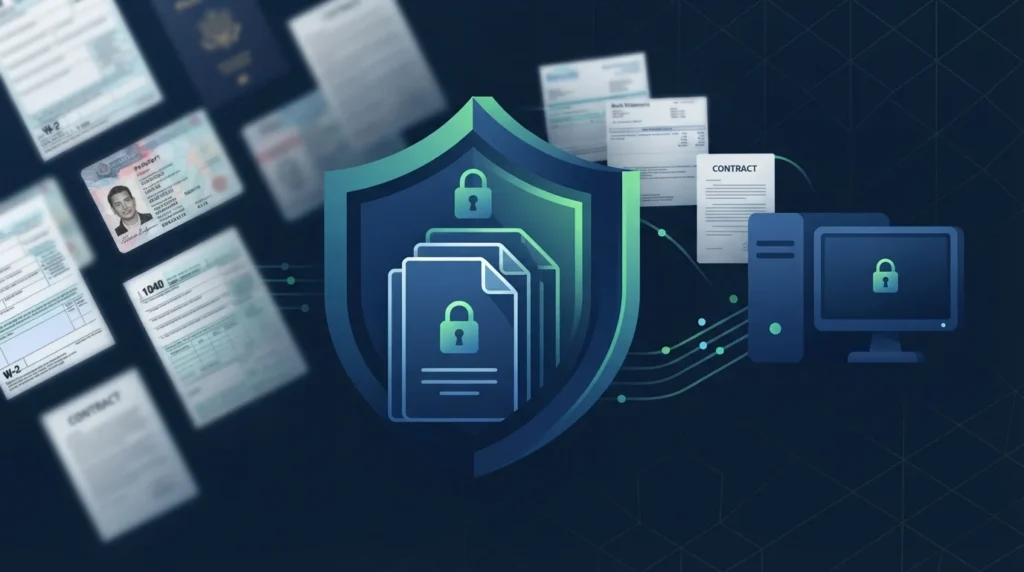
If you are working with tax forms, passports, Social Security documents, medical records, bank statements, or client files, prefer a scanner app or desktop software you trust. Before uploading sensitive documents to any online merger, read its privacy and deletion terms. A local desktop workflow can be a better choice for confidential material.
For more document workflow help, explore related resources on XYConvert, including PDF merging, PDF compression, and image to PDF conversion tools.
FAQ
How do I scan multiple pages into one PDF?
Choose PDF as the output format, scan the first page, and use the scanner’s Add page or Continue scanning option for each additional sheet. After the last page, review the preview thumbnails, correct the order or rotation, and save the completed multi page PDF.
Can I scan documents into one PDF with my phone?
Yes. Open a document scanner app, capture the first page, then use the add page option before saving. On iPhone, Notes supports document scanning, page adjustments, additional scans, and PDF saving within the same note.
How do I combine already scanned pages into one PDF?
Open a PDF merge tool, add each scanned PDF or image, arrange the pages in order, remove duplicates or blanks, and select Merge. Open the finished file afterward to make sure no page is missing and that pages are readable at normal zoom.
Why does my scanner save every page as a separate file?
Your scanner may be set to save as an image format, such as JPG, or multi page mode may be turned off. Change the destination format to PDF and look for settings such as multi page PDF, continuous scan, scan more pages, or add page.
Can I rearrange pages before saving a PDF?
Usually, yes. Most scanner apps and PDF merging tools show a thumbnail view. Press and hold or drag thumbnails into the correct order, rotate any sideways page, and delete blank pages before saving the final PDF.
How do I make a scanned PDF searchable?
Use OCR during scanning or in a PDF editor afterward. OCR recognizes printed text so you can search within the document and often copy text. It is less reliable for handwriting, low contrast copies, creased pages, or blurry photos, so verify important details manually.
Is it safe to merge scanned documents online?
It depends on the document and the provider. An online tool may be reasonable for non sensitive schoolwork or public documents. For IDs, tax records, financial statements, medical information, or confidential business documents, use a trusted local application or confirm the service’s security, retention, and deletion practices first.