
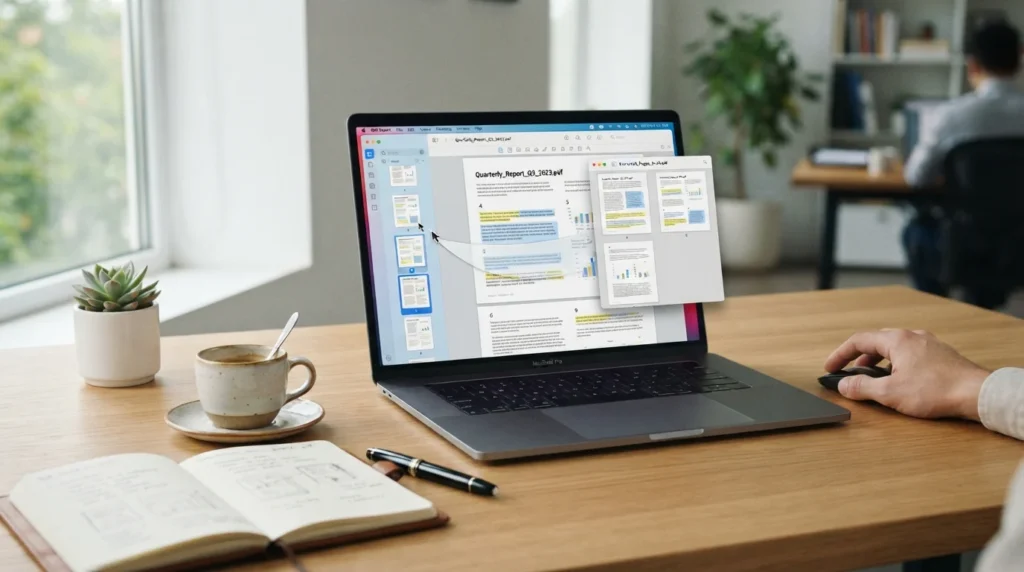
To extract pages from PDF files without losing quality, use a true page organization or extraction tool, select the pages you need, and save the result as a new PDF. Extracting creates a separate copy, deleting removes pages from the original, and splitting creates multiple PDFs. Avoid Print to PDF for important files because it can flatten forms, links, and other interactive elements. If smaller file size is also important, use a PDF compression tool.
Choose the right action first
The fastest route depends on what should happen to the original document. These actions sound similar, but they produce very different results.
| Your goal | Best action | What happens to original | Best use case |
|---|---|---|---|
| Keep pages 3, 7, and 12 in a new document | Extract | Original stays intact | Sending only relevant pages to a client |
| Remove a blank or incorrect page | Delete | Pages are removed from the saved original | Cleaning up a final report |
| Turn a 60-page file into six 10-page files | Split | Original usually remains intact | Creating smaller, upload-friendly files |
| Make a quick copy of selected pages with built-in software | Print selected pages to PDF | Creates a newly rendered file | Low-risk, simple documents |
For most business documents, select Extract if you want a smaller file while retaining the source document. Select Delete only after saving a backup. Select Split if every section needs its own PDF.
Adobe’s Organize Pages tools support all three operations. Its split options can use a page count, a maximum file size, or top-level bookmarks, which is useful for manuals and long reports with established sections.
Extract pages without quality loss
True PDF extraction generally reuses the existing page content rather than taking screenshots or printing each page again. That is why it is normally the best choice for preserving readable text, vectors, and original images.
Adobe Acrobat desktop method
Page organization in the Acrobat desktop app requires Acrobat Standard or Pro.
- Save a copy of the original PDF before editing.
- Open the copy in Adobe Acrobat.
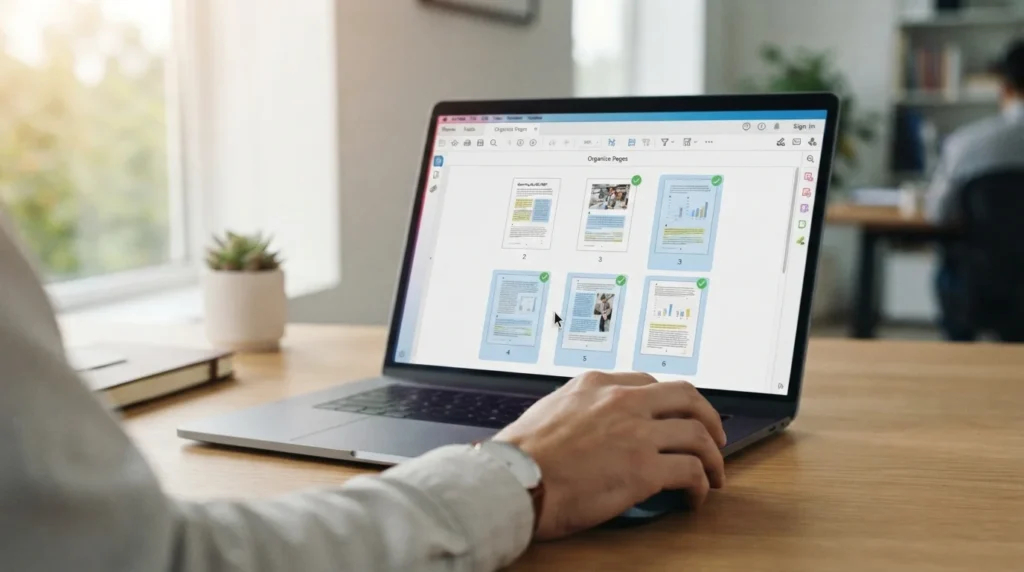
- Choose All tools, then Organize pages.
- Select the page thumbnails you need.
- For a continuous sequence, choose the first and last pages. For separate pages, select each required thumbnail.
- Select Extract. Leave “Delete pages after extracting” and “Extract pages as separate files” unchecked if you want one new PDF and an untouched original.
- Save the new file with a clear name, such as Q3 proposal pages 4-8.pdf.
- Open the new PDF and inspect every page before sharing it.
Adobe documents that you can select individual pages or enter specific page numbers and ranges through the Organize Pages interface. Extracted pages keep their form fields, comments, and links, but Acrobat does not carry over bookmarks or article threads. For online use, Adobe’s extraction tool asks you to sign in, choose the file and pages, and then produces a new PDF.
Mac Preview method
On a Mac, the built-in Preview app can extract pages without uploading your file anywhere.
- Open the PDF in Preview.
- Choose View, then Thumbnails.
- Select the pages you need. Shift-click to select a range, or Command-click to select separate pages.
- Drag the selected thumbnails to your desktop or a Finder folder. Preview creates a new PDF containing only those pages.
- Rename the new file and check every page.
Preview does not reprint the pages, but it can handle forms, accessibility tags, and other advanced features differently than Acrobat, so check important files carefully.
Free browser fallback
If you do not have a page organizer tool, open the PDF in Chrome, Microsoft Edge, or another browser with PDF printing support.
- Open the document.
- Press Ctrl + P on Windows, or Command + P on a Mac.
- Choose Save as PDF or Microsoft Print to PDF.
- Enter a custom page selection, such as 2, 5, 9-12.
- Save under a new name.
This is convenient, but treat it as a fallback. Printing may change page size, remove clickable links, flatten form fields, omit comments, or affect accessibility tags. PDFs may include annotations, metadata, hyperlinks, bookmarks, multimedia, and other features beyond visible text and images, so a visual check alone is not always enough.
Remove or split pages safely
To remove pages from PDF files, open the saved copy in Acrobat, choose Organize Pages, select the unwanted thumbnails, choose Delete, confirm, and save. Adobe also lets you identify multiple page numbers or ranges, which reduces mistakes in a lengthy document.
To split a PDF into separate files, use Organize Pages, then Split. Choose a consistent rule:
- Split after every 10 pages for a document portal with upload limits.
- Split by bookmarks for a training manual with chapters.
- Split by maximum file size for an email attachment or vendor system limit.
- Add divider lines manually when each new file needs a custom page range.
If upload requirements also set strict size limits, learn how to compress a PDF to 1MB, 500KB, or 200KB.
Quality problems usually come from conversion, not extraction. If the final file looks blurry, its contents may have been rasterized through a print workflow or image conversion. Go back to the original and use Extract or Split instead.
Protect important documents
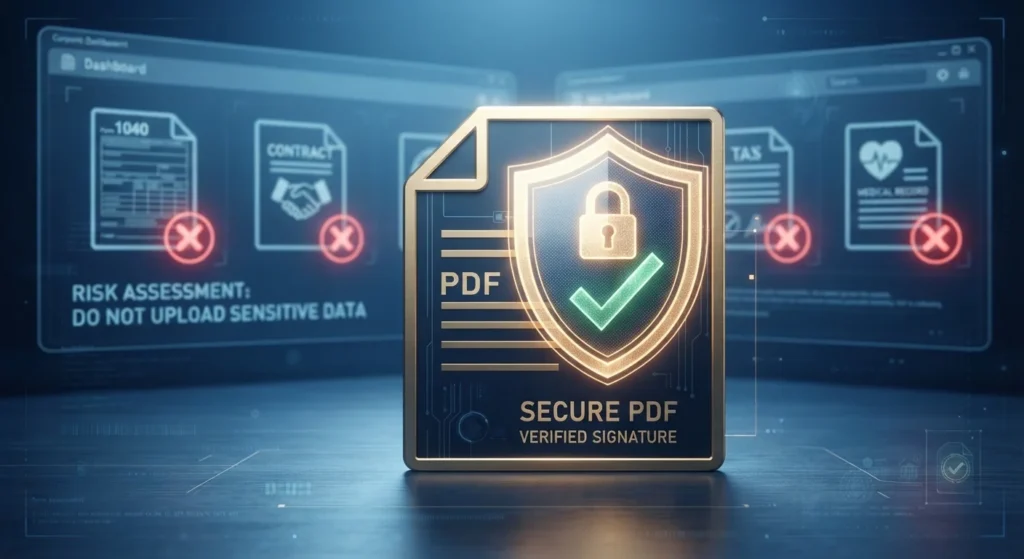
Do not upload sensitive PDFs to a web tool simply because it is free. Tax returns, bank statements, employee records, health information, contracts, and customer files can contain confidential data. Use a trusted desktop application or an approved company service when your organization has one. If you handle patient information for a healthcare provider or health plan, HIPAA rules may also limit which online services you can use.
Also pause if the PDF is password-protected, certified, or digitally signed. Changing the page structure can affect signature validity or document permissions. PDF digital signatures are designed to show whether a document has been altered after signing, so deleting pages can invalidate a signature, and an extracted copy will not carry a valid signature. Ask the sender for a redacted or editable copy if you need changes to a signed agreement. Do not remove restrictions you are not authorized to change.
Finally, compare the extracted file against the original:
- Confirm page count and page order.
- Check headers, footers, charts, and page numbers.
- Test any links, bookmarks, and form fields you still need.
- Rename files clearly so no one mistakes an excerpt for the full record.
FAQ
How do I extract just certain pages from a PDF?
Use a PDF page organizer, select the exact page thumbnails or page numbers, choose Extract, and save the result as a new PDF. This keeps the original untouched. For nonconsecutive pages, select each page individually before extracting. Adobe supports individual selections and page ranges in its Organize Pages workflow.
How do I save one page of a PDF?
Open the PDF in an extraction tool, select the one page thumbnail, choose Extract, and save the new file. You can also use Print and Save as PDF with a one-page custom range, although extraction is preferable when the page includes form fields, comments, links, or other interactive features.
Can I extract pages from a PDF for free?
Yes. Browser printing can create a PDF from selected pages at no extra cost, Mac users can use the built-in Preview app, and some online tools provide limited free use. Free options may involve uploads, sign-in requirements, file limits, or privacy tradeoffs. For confidential material, use an organization-approved desktop application rather than a public upload service.
How do I delete pages from a PDF?
Save a backup, open the working copy in a PDF editor, choose Organize Pages, select the unwanted thumbnails, choose Delete, then save. Adobe’s desktop instructions support deleting one page, multiple individual pages, or page ranges. Reopen the saved file to make sure the remaining pages flow correctly.
How do I split a PDF into separate files?
Use a Split command rather than manually extracting every group. In Acrobat, you can split by number of pages, maximum file size, or bookmarks. Choose manual divider points if each output file needs a different page range, such as pages 1 through 4, 5 through 17, and 18 through 22.
How do I extract nonconsecutive pages from a PDF?
In a page organizer, select the first page, then select each additional page while holding the multi-select key for your operating system. On Windows, this is commonly Ctrl; on Mac, Command. Then extract the selected pages into one new PDF and check that the order matches your intended sequence. For related document tasks, you can also browse our PDF tools.
Why can’t I extract pages from a PDF?
The file may be password-protected, restricted by its creator, corrupted, or digitally signed. You may also be using a viewer rather than a full editor. Ask the owner for permission or an unrestricted copy. If you are authorized, use a desktop PDF editor and preserve the original file before attempting changes.