Resize vs Compress Images: What’s the Difference and Which Should You Do First?
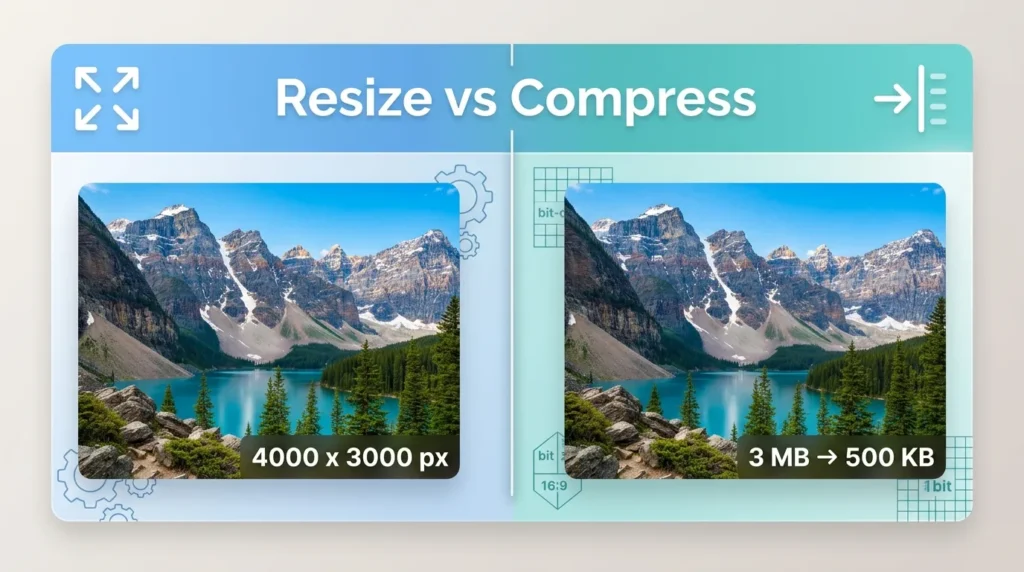
A resized image has smaller width and height in pixels. A compressed image takes up less storage space, often without changing its pixel dimensions.
Use resizing when an image is larger than the space where it will appear. Use compression when you need a smaller file size for uploads, email, storage, or faster web pages.
Quick Answer
| Term | What it changes | Best use |
|---|---|---|
| Resize | Pixel dimensions, such as 4000 x 3000 to 1200 x 900 | When the image is too large for its display area |
| Compress | File size in KB or MB | When you need a lighter file for upload or web performance |
| Both | Dimensions and file size | The best approach for most website images |
Key takeaway: Resize first to the largest size you need, then compress that smaller version. This usually gives you the best balance of quality and file size.
What Does “Image Size” Really Mean?
This is where most confusion begins.
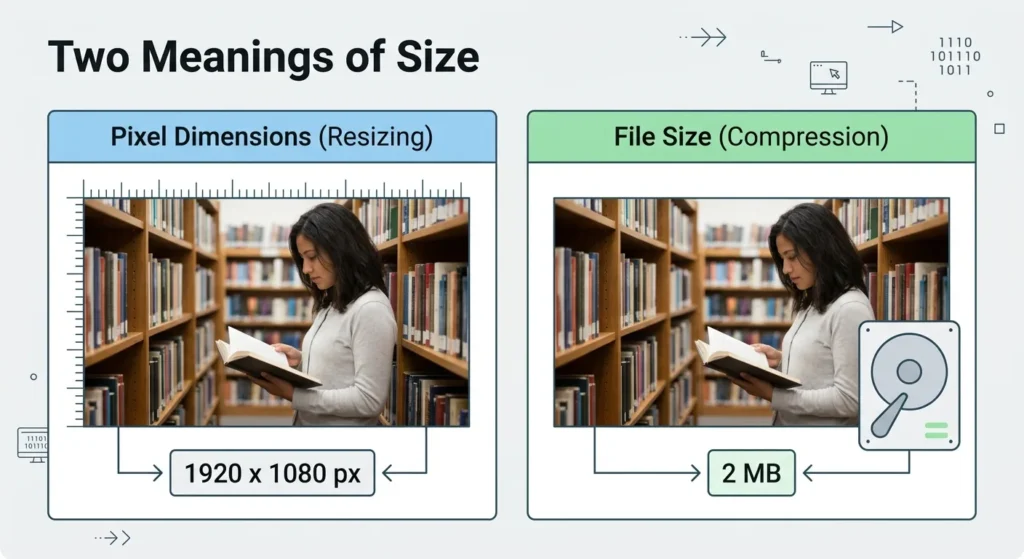
“Image size” can mean two different things:
- Pixel dimensions: The width and height, such as 1920 x 1080.
- File size: The amount of storage it uses, such as 2 MB.
A photo can be 1920 x 1080 pixels and weigh 4 MB. Another photo with the same dimensions may weigh only 500 KB. The difference comes from the image format, colors, detail, metadata, and compression settings.
So when someone says, “Make this image smaller,” I always ask: Do you mean smaller on the screen, or smaller in file size?
What Is Image Resizing?
Resizing changes the image’s width and height.
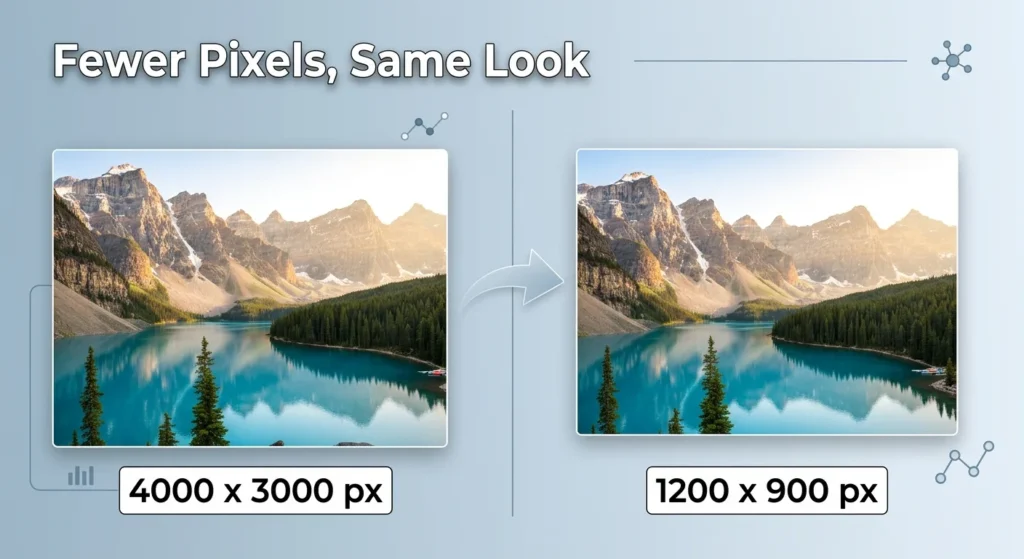
For example, suppose your phone takes a 4000 x 3000 pixel photo. If your website displays it at 1200 pixels wide, you can resize it to 1200 x 900 pixels.
That removes millions of pixels that would never be seen at full size.
When resizing makes sense
Resize an image when:
- You are uploading it to a website.
- The largest display width is known.
- You need to meet a specific dimension requirement.
- You want to reduce the file size without applying heavy compression.
- You are preparing images for social media, email, or a form.
Resizing is often the first and most effective step. A 4000 x 3000 image reduced to 1200 x 900 contains far fewer pixels, so the file naturally becomes lighter.
Does resizing reduce quality?
It can, depending on how you do it.
If you reduce a 4000 pixel wide image to 1200 pixels wide, it will no longer look sharp when enlarged to its original size. But on a webpage that only shows it at 1200 pixels, it can still look excellent.
The key is to resize to the largest size your website or platform will display, not to an unnecessarily tiny size.
For example, if your blog content area is 800 pixels wide, resizing a photo to 1200 pixels wide gives you room for high-resolution screens. Resizing it to 300 pixels wide would make it blurry.
What Is Image Compression?
Compression reduces the amount of data needed to store an image.
It can lower a file from 3 MB to 500 KB without changing its width and height. The image still has the same pixel dimensions, but it is stored more efficiently.
There are two main types:
Lossless compression
Lossless compression preserves every pixel value. When the file is opened, the image remains exactly the same as the original.
This is useful for:
- Logos
- Text-heavy graphics
- Screenshots
- Icons
- Images with sharp edges
- Files where every detail matters
The tradeoff is simple: lossless compression is safe, but it may not reduce file size dramatically.
Lossy compression
Lossy compression removes some visual information to create a smaller file.
Done carefully, most people will not notice the difference. Done too aggressively, the image can look blurry, blocky, or show visible artifacts around text and edges.
This is useful for:
- Photos
- Product images
- Blog featured images
- Social media graphics
- Images with lots of color and detail
A good starting range for photographs is often a quality setting between 75 and 85. Test the result before uploading, especially if the image contains small text, product details, or faces.
Resize versus Compress: The Key Difference
Here is the simplest way to remember it:
- Resizing changes how many pixels the image has.
- Compression changes how those pixels are stored.
| Situation | Better choice | Why |
|---|---|---|
| Your image is 4000 pixels wide, but your site displays 1000 pixels | Resize | You are carrying pixels you do not need |
| Your image has the right dimensions but is too many MB | Compress | You need fewer bytes, not fewer pixels |
| A form accepts only files under 1 MB | Resize and compress | Dimensions may be fine, but the file must be lighter |
| Your logo looks blurry after upload | Check dimensions and format | Compression may not be the only issue |
| Your website loads slowly | Resize, compress, and use WebP | Image optimization improves performance |
A compressed image can still be very large in pixel dimensions. A resized image can still be too heavy if it is saved with excessive metadata or poor export settings.
Should You Resize or Compress First?
In most cases, resize first.
Here is the workflow I recommend:
- Check the largest width your website, email, or platform displays.
- Resize the image to that width.
- Export or save it in a web-friendly format.
- Compress it to a target file size.
- Review the final image at actual display size.
Why does this order work better?
Because compressing a huge image wastes effort. You may spend time reducing a 6000 pixel image, only to resize it later and compress it again.
If you resize first, compression has less data to process. You get a cleaner result with less quality loss.
For example, a 6000 x 4000 photo may be 8 MB. If your blog displays it at 1200 pixels wide, resize it to 1200 x 800 first. Then compress the smaller file. You may end up with a sharp image around 150 KB to 400 KB, depending on the format and quality setting.
How to Reduce Image Size Without Losing Quality
You cannot always reduce file size with zero change, but you can often reduce it without a visible loss in quality.
Use these verified steps:
| Do this | Details |
|---|---|
| Resize to actual display dimensions. | Do not upload a 4000 pixel image if your page shows it at 1200 pixels. |
| Use lossless compression first. | This is the safest option when quality matters. |
| Remove unnecessary metadata. | Camera data, location details, and editing history can add file weight. |
| Convert photos to WebP. | WebP often produces smaller files than JPEG or PNG at similar visual quality. |
| Use PNG for graphics with sharp lines. | Use JPEG or WebP for photographs. |
| Avoid repeated saving. | Every time you save a JPEG at a lower quality, it can lose more detail. |
| Test before uploading. | View the image at 100% and at the size it will appear on the page. |
Google’s image optimization guidance recommends serving images at the size they are displayed and using modern image formats where appropriate.
Which Format Should You Use?
The right format depends on the type of image.
| Image type | Recommended format | Why |
|---|---|---|
| Photograph | WebP or JPEG | Handles color, gradients, and detail efficiently |
| Logo with transparency | PNG or WebP | Preserves transparency and sharp edges |
| Screenshot | PNG or WebP lossless | Keeps text crisp and readable |
| Icon | SVG, PNG, or WebP | Small file size and scalable display |
| Animated image | WebP or GIF | WebP often provides better compression |
Do not assume PNG is always higher quality. PNG is excellent for sharp graphics, but it can create very large files for photographs. JPEG is often better for camera photos, while WebP is a strong modern option for both.
Common Image Problems and Fixes
My image is blurry
Check these items:
- Was it resized too small?
- Was it enlarged from a low-resolution original?
- Was it saved at very low quality?
- Is the original image sharp?
A compressed image does not gain detail when you enlarge it. Start with the highest-quality original available.
My image is still too large
Try this order:
- Resize it.
- Convert it to WebP.
- Use lossless compression.
- If needed, use moderate lossy compression.
- Remove metadata.
Do not start with extreme compression. Reduce the settings gradually until the file reaches your target size.
My website is slow
Large images are a common cause.
Make sure you are not uploading images wider than they need to be. Resize them to the display size, compress them, and use responsive image settings if your website supports them.
My image is cut off when I print it from a PDF
If the image is being placed into a PDF for printing, file size is separate from page layout. When it appears cropped or clipped on paper, a paper size mismatch such as an A4 PDF printing with a missing edge is a common cause.
Quick Decision Guide
Use this simple guide before uploading any image:
| Need | What to do |
|---|---|
| Need a smaller image on the page? | Resize it. |
| Need a smaller KB or MB file? | Compress it. |
| Need both? | Resize first, then compress. |
| Need the best quality? | Use lossless compression and avoid over-compressing. |
| Need faster website loading? | Resize, compress, and consider WebP. |
| Need to meet an upload limit? | Resize only if dimensions allow, then compress to the required file size. |
Frequently Asked Questions
Does resizing an image reduce quality?
It can. Reducing dimensions removes pixels, so the image cannot be enlarged back to its original size without losing sharpness. But if you resize it to the size it will actually display, it can still look clear and professional.
Can you compress an image without losing quality?
Yes. Lossless compression reduces file size without removing pixel data. However, the file-size reduction may be smaller than with lossy compression.
Should I resize or compress an image first?
Resize first. Then compress the smaller version. This usually produces a smaller file while preserving better visual quality.
Is a smaller image always better for SEO?
Not always. An image should be large enough to look sharp on the devices where it appears. The goal is the smallest file size that still looks good, not the lowest possible quality.
What is the best image format for a website?
For most photos, WebP is a strong choice. Use PNG for graphics that need transparency or very sharp edges. Use JPEG only when WebP is not available or supported.
Final Review
Resize changes pixel dimensions. Compress changes file size. Most image problems are fixed by using both in the right order.
Resize the photo to the largest size it will appear, save it in a suitable format, and compress it carefully with free browser-based file tools. That approach is tested, safe, and effective for websites, email, uploads, and social media.