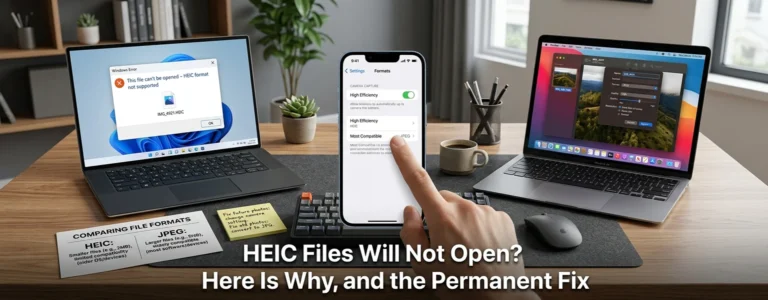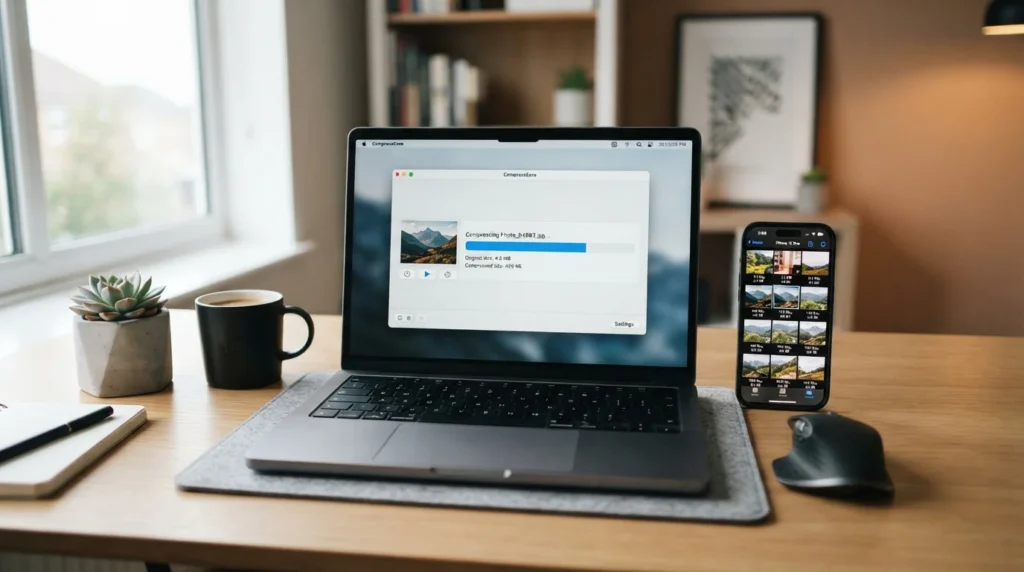
To resize an image to a specific KB size, use an image resizer with a custom target file size. Upload the image, enter the required limit, choose JPEG when appropriate, and download the result. If the image must meet pixel dimensions too, set the width and height before compressing. Always check the downloaded file properties because upload forms may reject files that are even slightly over the limit.
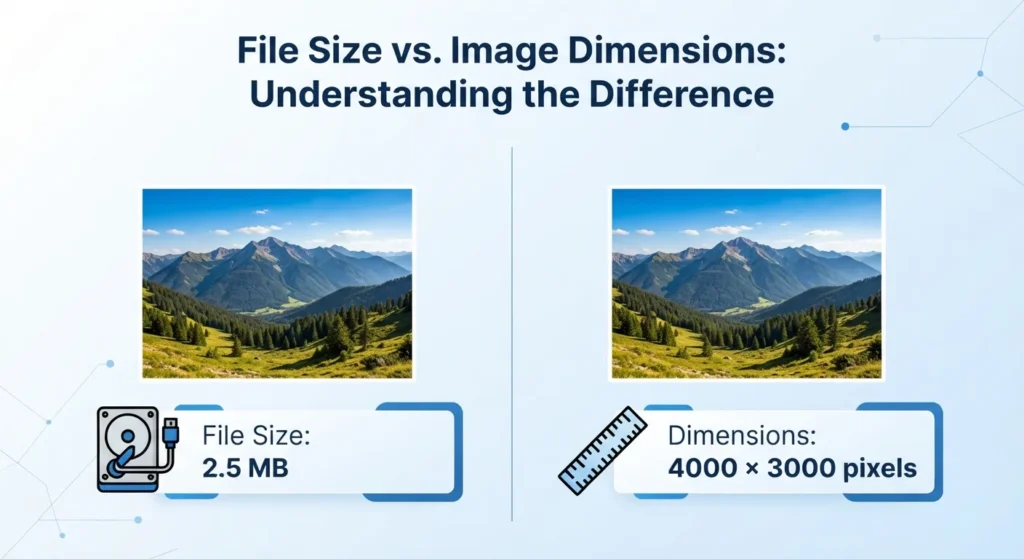
File size vs. image dimensions
“Image size” can mean two different things:
| Requirement | What it measures | Example |
|---|---|---|
| File size | Storage space used by the file | 20 KB, 50 KB, or 100 KB |
| Pixel dimensions | Width and height of the image | 600 × 600 pixels |
| Physical dimensions | Printed or displayed size | 2 × 2 inches |
| Resolution | Pixel density for printing | 300 PPI |
Changing an image from 2,000 × 1,500 pixels to 800 × 600 pixels may reduce its file size, but it does not guarantee a particular KB value. Compression quality, image format, colors, metadata, and photo detail also affect the final size.
If an application says “maximum 100 KB,” that is a file-size requirement. If it says “600 × 600 pixels,” that is a dimension requirement. If it lists both, you must satisfy both.
The fastest method
For most upload forms, use a browser-based tool that supports a target file size. An image-to-KB tool provides custom targets and common presets, while ResizePixel’s reducer supports KB and MB limits.
Use this process:
- Make a copy of the original image.
- Open a reputable image compressor or resizer.
- Upload the copy.
- Enter the required file size in KB.
- Set the required width and height if the form lists pixel dimensions.
- Choose JPEG for ordinary photographs unless the form specifically requires PNG.
- Compress or export the image.
- Download the result.
- Check the actual file size in your device’s file information.
- Upload the downloaded file, not the original.
If the website requires a maximum of 100 KB, aim for about 90 to 95 KB rather than exactly 100 KB. This gives you a small margin for differences between the tool’s display and the application’s upload checker.
Choosing the right format
The file format often determines how easily you can meet the target.
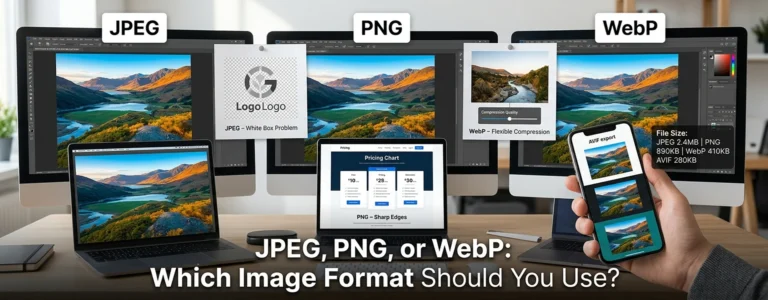
| Image type | Best choice | Reason |
|---|---|---|
| Photograph | JPEG or JPG | Usually produces a small file with acceptable quality |
| Logo with transparency | PNG | Preserves transparent backgrounds |
| Screenshot with text | PNG or WebP | Keeps sharp edges and text |
| Simple graphic | PNG or WebP | Can preserve flat colors clearly |
| Website image | WebP where accepted | Often offers a small file with good quality |
| Official upload form | Follow the listed format | Some forms reject unsupported formats |
JPEG uses lossy compression, so lowering the quality can make the file much smaller. PNG is generally better for transparency and sharp graphics, but a detailed PNG photograph may remain too large.
Adobe explains that compression reduces stored image data, and that JPEG is often suitable for sharing because it offers a relatively small file while retaining reasonable visual quality. Adobe’s image compression guidance also recommends avoiding more compression than necessary.
How to resize image to 20 KB
A 20 KB limit is very restrictive, particularly for a detailed photograph.
- Crop unnecessary background first.
- Reduce the pixel dimensions to the minimum accepted by the form.
- Convert the image to JPEG if transparency is not needed.
- Set the target to 20 KB.
- Review the face, signature, or text at full size.
- Keep a backup of the original.
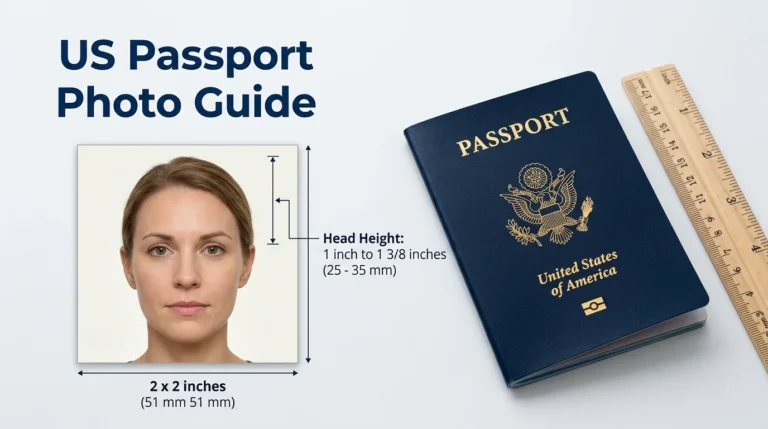
For a passport-style photo, excessive compression can make facial details blurry or create blocky artifacts. If the application gives a minimum resolution as well as a 20 KB maximum, do not reduce the dimensions below that minimum.
How to compress an image to 50 KB
To compress an image to 50 KB, begin with dimensions rather than immediately lowering quality.
A practical sequence is:
- Crop the image to remove empty space.
- Resize the longest side to a sensible dimension for the form.
- Export as JPEG.
- Start with medium or high quality.
- Check the file size.
- Lower quality gradually until the file is below 50 KB.
- Confirm that text, signatures, and faces remain readable.
Adobe Express’s image compressor provides a quality slider and preview, which can help you compare visual quality before downloading. A target-size tool is more convenient if you need to hit a precise number.
How to make an image under 100 KB
To make an image under 100 KB, use the least aggressive settings that meet the requirement:
| Step | Action |
|---|---|
| 1 | Crop the image before compression. |
| 2 | Remove unnecessary borders and backgrounds. |
| 3 | Reduce oversized dimensions. |
| 4 | Use JPEG for photographs. |
| 5 | Strip unnecessary metadata when privacy and workflow allow. |
| 6 | Set the target below 100 KB. |
| 7 | Verify the downloaded file after processing. |
For website images, Adobe describes 200 KB to 500 KB as a commonly used upper range, but an online form may impose a much smaller limit. Follow the form’s requirement rather than a general web guideline.
Mac, iPhone, and built-in options
On a Mac, open the image in Preview, select File > Export, choose JPEG, and adjust the quality setting. The exact final KB value may require several attempts because the quality slider does not always target a precise number.
Apple’s current iPhone guidance says Preview can export images as JPEG, HEIC, JPEG 2000, PNG, or TIFF and provides a size control for formats such as JPEG and HEIC. Apple Support’s export instructions explain that moving the size control toward a smaller file reduces the output size.
On Windows, Paint can reduce pixel dimensions, but it usually does not provide a direct exact-KB control. Exporting as JPEG and checking the resulting file properties may require a few attempts. A dedicated target-size compressor is faster for strict requirements.
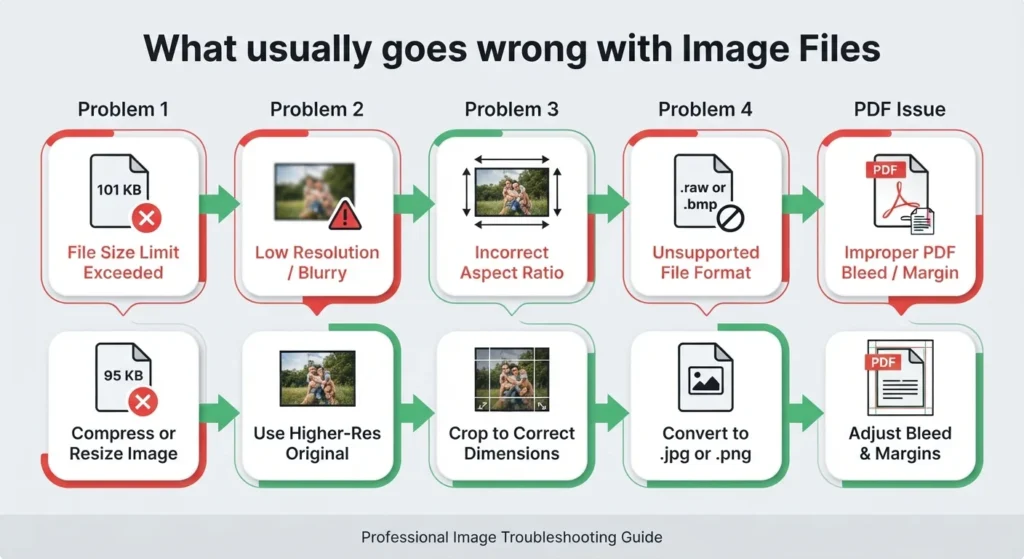
What usually goes wrong
The file is still slightly too large
The tool may round the displayed size, or the upload form may calculate KB differently. Compress the image to a few KB below the limit and verify the saved file.
The image looks blurry
The quality was reduced too far, or the dimensions are too small. Restore the original, crop it, reduce dimensions moderately, and export again at higher JPEG quality.
The image has the right KB but wrong dimensions
File size and dimensions are separate requirements. Set the required pixel width and height before final compression.
The form rejects the format
Rename the file only if the extension matches the actual format. If the form requires JPG, export or convert the image to JPEG instead of merely changing “.png” to “.jpg.”
The image becomes larger after conversion
Some simple graphics are smaller as PNG than JPEG. Compare both formats when the upload form accepts both, then choose the clearer file that satisfies the limit.
A PDF page prints with missing edges
If the image is being placed into a PDF for printing, file size is separate from page layout. Review why an A4 PDF may print with a missing edge when the image appears cropped or clipped on paper.
FAQ
How do I resize an image to a specific KB size?
Use a compressor with a custom target-size field. Upload the image, enter the required KB value, choose the correct format, and download the result. If the form also requires pixel dimensions, set those before compression. Check the saved file’s properties afterward because the displayed estimate may differ slightly from the upload system’s calculation.
How can I resize a photo to 20 KB?
Crop the photo, reduce its pixel dimensions to the form’s minimum, and export it as a JPEG if transparency is unnecessary. Enter 20 KB in a target-size compressor and inspect the result closely. If the image becomes unreadable, the original may contain too much detail for that limit, so check whether the application specifies a different minimum size or format.
How do I compress an image to 50 KB?
Start by removing unnecessary background and reducing oversized dimensions. Convert a photograph to JPEG, then adjust quality until the file is below 50 KB. A tool with a target-size option can automate this process. Keep the original file because repeated compression can reduce quality and may introduce visible artifacts.
How can I make an image under 100 KB?
Crop the image, resize its dimensions, and export it in an efficient format. JPEG is usually a practical choice for photographs, while PNG may be better for transparency or sharp graphics. Set the target to 90 or 95 KB instead of exactly 100 KB, then verify the final downloaded file before uploading it.
What is the difference between image dimensions and file size?
Dimensions describe the number of pixels, such as 800 × 600. File size describes how much storage the image uses, such as 75 KB. Two images with identical dimensions can have different file sizes because of their format, compression quality, colors, and metadata. A form can require both measurements separately.
Which image format creates the smallest file?
There is no single smallest format for every image. JPEG commonly works well for photographs, while PNG can be smaller for simple graphics and images requiring transparency. WebP can also provide a small file where the receiving website accepts it. Always follow the upload form’s supported-format list.
Can I increase an image to a specific KB size?
Yes, but adding file size does not improve image quality. A tool may increase the file by changing format, adding metadata, or using less compression, but it cannot restore detail that was removed. If an application sets both minimum KB and image-quality requirements, use the highest-quality export that stays within the permitted range.
Next steps
Use a target-size tool when the requirement is stated in KB, and use a pixel resizer when the requirement is stated in width and height. For photographs, test JPEG first; for transparent logos or sharp graphics, test PNG or an accepted WebP file. Save the original separately, verify the final file properties, and keep a small size buffer below strict upload limits.
For related file conversion and image tasks, visit the online image and file conversion tools.