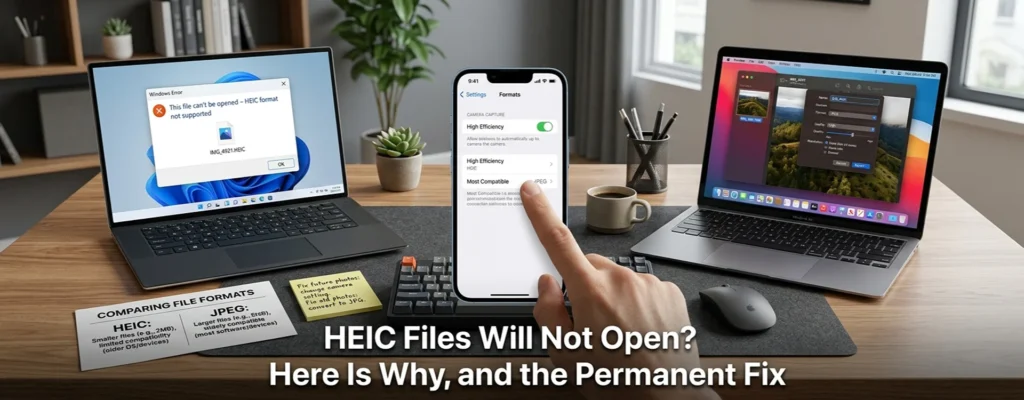
Before you convert another picture, change how your iPhone saves them. Go to Settings > Camera > Formats and select Most Compatible to save new photos as JPEG. Existing HEIC files stay unchanged, so use XYConvert for HEIC-to-JPG conversion when you need compatible copies of photos you’ve already taken. This distinction saves repeat work: fix today’s attachment, then prevent the same format mismatch with future photos.
Quick Answer: Match the Fix to Your Problem
- Want to stop the problem for future photos? On your iPhone, go to Settings > Camera > Formats > Most Compatible.
- Can’t open a HEIC file on Windows? Try Microsoft Photos, and install Microsoft’s HEIF Image Extensions and HEVC Video Extensions if prompted.
- A website accepts JPG but rejects HEIC? Save a separate JPG copy and upload that. Installing Windows extensions won’t change the file you upload.
- One file fails even in compatible software? Check the download, the file size, and the original before assuming another converter will solve it.
The permanent fix applies to photos you take from now on. It can’t repair damaged files or change someone else’s camera settings.
Start With the Most Compatible Camera Setting
On your iPhone or iPad:
- Open Settings.
- Tap Camera.
- Tap Formats.
- Choose Most Compatible.
According to Apple, Most Compatible captures photos as JPEG and video as H.264, both widely supported formats. High Efficiency uses HEIF for photos and HEVC for video, which need less storage than JPEG and H.264 at similar quality. Which one should you pick? Most Compatible removes the repeat conversion step if your routine involves Windows colleagues, older software, or online forms that ask for JPG. If storage space matters more and your apps support HEIC, High Efficiency is a good option.
Confirm New Photos Are Saving as JPEG
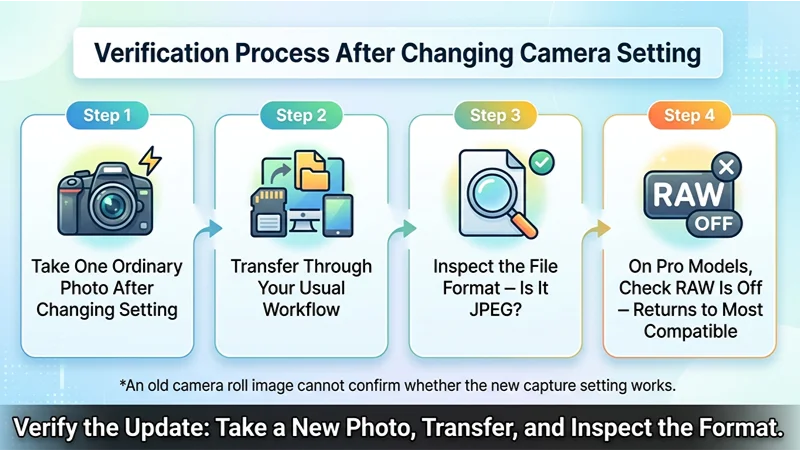
Take one ordinary photo after changing the setting, transfer it through your usual workflow, and check its format. An old camera roll image can’t confirm whether the new setting works. If you need JPEG copies of those older photos, use an HEIC to JPG converter. On Pro models, also check whether RAW is turned on in the Camera app. Photos taken in RAW are saved as DNG files, not JPEG, so turn RAW off when you need standard JPEG photos.
Why Your iPhone Photo Won’t Open
HEIC is the file extension Apple uses for photos saved in the HEIF (High Efficiency Image File) format, which iPhones have supported since iOS 11. The photo may be in perfect condition, but the app receiving it may not support the format. Imagine a coworker sends you a photo of a receipt. Your Windows PC downloads it successfully, but Photos asks you to install an extension. That points to missing format support, not automatically to corruption.
Now consider a different case: the photo opens perfectly, but an application portal rejects it. Here, the portal’s accepted file formats are the problem. Your computer’s ability to display HEIC doesn’t make the website accept it. These failures look similar, but they need different fixes.
Macs running macOS High Sierra 10.13 or later open HEIC files natively, so this problem shows up mostly on Windows PCs, older software, and web upload forms.
How to Open a HEIC File on Windows 10 or 11
Use Microsoft Photos instead of installing an unknown codec pack. If Photos says an extension is required, look in the Microsoft Store for HEIF Image Extensions and HEVC Video Extensions, both published by Microsoft. You typically need both: HEIC photos are compressed with HEVC, so installing only the HEIF extension may still leave the image unreadable. Restart Photos after installation. The HEVC extension may carry a small fee, so check whether it’s already installed, and confirm the current price and system requirements before purchasing.
Already installed them? Update Photos and both extensions, reopen the app, and test another HEIC image. If you use a Windows “N” edition, which ships without some media features, check that media components are installed too. If other files open but one doesn’t, investigate that file’s transfer or integrity. A viewing fix keeps the original format. It doesn’t produce a JPG attachment.
Convert Existing HEIC to JPG Without Replacing the Original
For a website, recipient, or print service that specifically requires JPEG, create a separate copy.
On a Mac
- Open the image in Preview.
- Choose File > Export.
- Select JPEG.
- Save the exported image as a separate file.
On Windows
Use a reputable converter that accepts HEIC and outputs JPEG. If you’ve installed Microsoft’s extensions, you can also open the photo in Paint and choose File > Save as > JPEG picture for a quick one-off copy.
Before converting a whole folder, test one image and check its resolution, orientation, visible detail, and file size. Avoid converting back and forth between formats. Because JPEG uses lossy compression, “same dimensions” doesn’t mean “identical image data.” When the photo matters, keep the HEIC original.
Don’t Just Rename the Extension
Renaming photo.heic to photo.jpg changes the label, not the image encoding. Many apps and upload forms will still reject the file. Export or convert the image properly instead.
Keep HEIC on Your Phone, but Share Compatible Copies
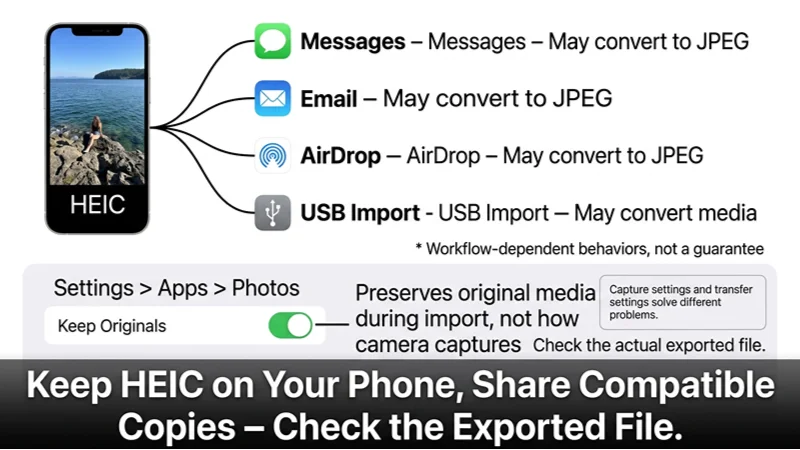
You don’t necessarily need to give up HEIC. Apple explains that when you share through AirDrop, Messages, or email and the receiving device doesn’t support the newer formats, your iPhone may automatically send a more compatible format such as JPEG. Importing over USB may also convert media. These behaviors depend on your workflow; they don’t guarantee that every destination receives JPEG.
The transfer setting is under Settings > Apps > Photos, in the Transfer to Mac or PC section. Automatic lets your iPhone convert photos to a compatible format during USB import, while Keep Originals preserves the original HEIC files. Neither option changes how the camera captures new photos. Capture settings and transfer settings solve different problems, so check the actual exported file before relying on either one for an important submission.
When Another Converter Isn’t the Answer
If a file shows 0 bytes or keeps failing to download, get a fresh copy; a different output format won’t help. If one image still won’t display, download or transfer the original again, save it locally, and try another app that supports HEIC. When several compatible apps fail, the file may be incomplete or damaged, though that isn’t conclusive proof.
How to Choose a HEIC to JPG Converter
A trustworthy service should clearly disclose accepted formats, file size limits, where files are processed, how long they’re kept, and which output controls you get. Look beyond the upload button. Orientation correction and metadata settings can matter as much as compression quality, especially when photos contain GPS location data or need to display upright. Use a converter for existing files, and change the camera setting to reduce future conversion work.
Frequently Asked Questions
Why can’t Windows open my HEIC photos?
The app may lack HEIF or HEVC support. Microsoft offers extensions for Photos; a different compatible viewer or a JPEG copy are other options.
Does Most Compatible convert my old photos?
No. It only changes how the camera captures new photos. Existing HEIC images need separate conversion if your destination requires JPEG.
Is HEIC better than JPG?
HEIF offers better compression at comparable visual quality. JPEG offers broader compatibility. The better choice depends on your storage needs and the software receiving your photos.
Can I open HEIC files on a Mac?
Yes. Macs running macOS High Sierra 10.13 or later open HEIC files natively in Photos and Preview, and Preview can export a JPEG copy.
Can I convert HEIC to JPG for free?
Yes. Preview can export JPEG copies on a Mac, and several online services offer free HEIC conversion. Review their limits and privacy policies first.
Why does my photo open but still fail to upload?
The website may reject HEIC regardless of the codecs installed on your computer. Export a JPEG copy, then check the site’s file size and dimension requirements. If the converted photo exceeds the upload limit, follow our guide on how to resize an image to an exact KB size.
Why won’t HEIC open after installing extensions?
Photos or the extensions may need an update, or the file may be incomplete. Update Photos, test another HEIC image, and transfer the original again.