JPEG, PNG, and WEBP: What’s Really Changing?
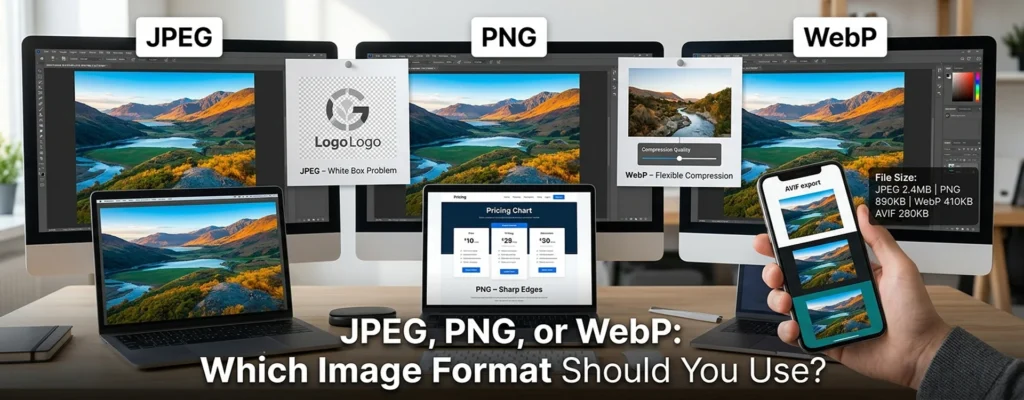
JPEG is a widely supported format that works best for photos. It reduces file size by discarding some image data. This approach usually looks good on subjects with smooth color transitions and natural textures, like a restaurant photo. Even without preserving every pixel, a JPEG can still look realistic.
However, heavy compression can blur fine details. If you export a pricing chart as a JPEG, the text may look fuzzy and the edges may appear soft. JPEG also does not support transparency.
In what instances is PNG used?
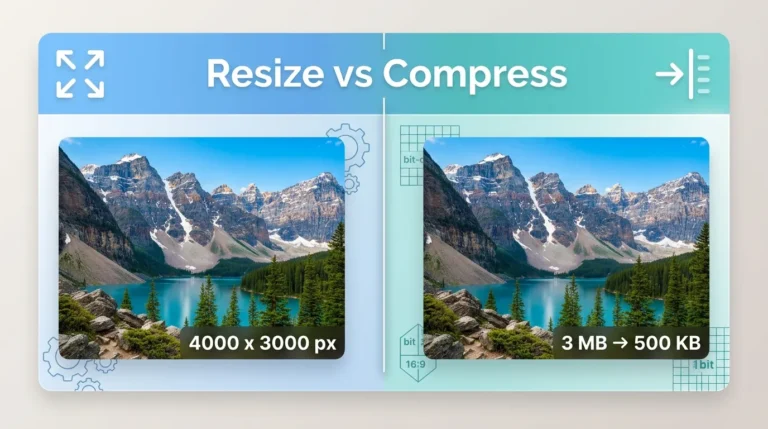
Use PNG for screenshots, diagrams, raster logos, and graphics where precise edges are important. This technique compresses the data of the pixel it encodes without removing any information from it. That doesn’t mean PNG is the best option for every high-quality image. A detailed photo could become too large, while a single graphic with repeated colors would compress well. If a PNG file is too heavy for an upload form or website, you can resize an image to an exact KB size without guessing the right settings. The quality of content matters more than the reputation of the extension.
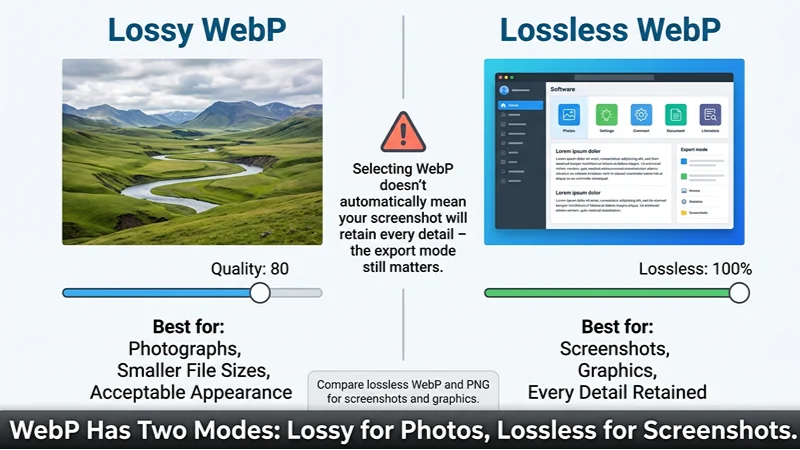
WebP has two different modes.
WebP can use lossy or lossless compression and transparency. Use lossy WebP for photos as long as the appearance is still acceptable. Compare lossless WebP and PNG for screenshots and graphics. That distinction prevents a common mistake. Selecting WebP does not automatically mean your screenshot will retain every detail, because the export mode still matters.
The transparency of the JPEG trap
Your logo looks perfect in the editor. After conversion, a white rectangle appears around it. The webpage is not usually the problem. JPEG doesn’t support alpha transparency, which means there’s no information about the transparency of the image. So, the export must fill the transparent area with opaque pixels. You choose what is replaced with what in most applications.
Imagine a white product cutout designed for cream and charcoal backgrounds. Although the JPEG appears to have much white in one section, in the other it shows an obvious box. Changing that JPEG back to PNG can’t bring back the transparency!
Prevent it before publishing.
-
Keep the original transparent asset.
-
Export a separate PNG or WebP copy with transparency enabled.
-
Preview it against white, dark, and colored backgrounds.
-
Inspect soft shadows and edges.
-
Upload it to the actual destination and check the published result.
If a platform requires JPEG, deliberately flatten the image against its intended background. That creates a version for that background, not a reusable transparent asset.
AVIF vs. WebP: Is it worth the trouble?
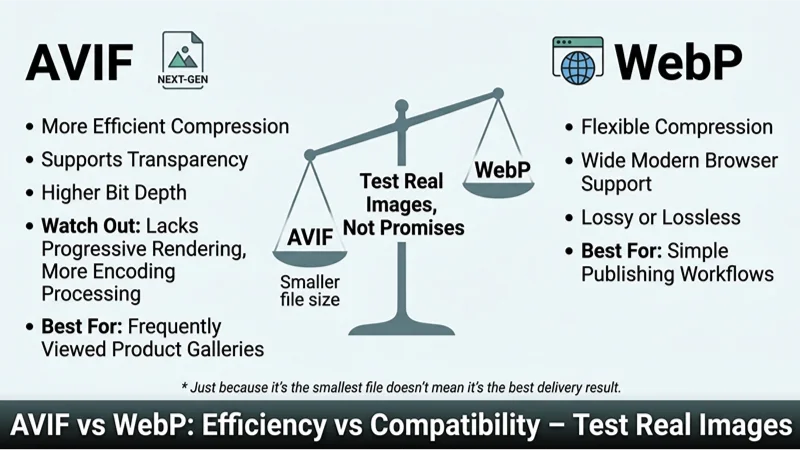
AVIF typically compresses images more efficiently and supports transparency and higher bit depth. WebP remains a flexible option with broad support across modern browsers.
Before choosing a format, confirm that your tools and publishing destinations support it. The smallest file isn’t always the best experience for users. Compared to progressive JPEG, AVIF doesn’t support progressive rendering and usually requires more processing time to encode.
AVIF can be a strong choice for frequently viewed assets—like product gallery images—especially if you generate and cache variants ahead of time. For simpler publishing workflows, WebP is often easier to manage.
To compare both formats with your own images, use a free image converter to create AVIF and WebP versions, then review quality and file size side by side. Test with real images—not just promised savings.
Easily find the best image format for the web.
Before updating an entire library, I’d compare a photograph, a screenshot, and a transparent asset. It is recommended to be evaluated this way; it does not mean these files have been tested here.
Consistent dimensions and metadata handling. For the photo, compare the JPEG and lossy WebP. For the screenshot and transparent graphic, compare the PNG and lossless WebP. Look at the display size before looking at the tricky parts closely. It would be a mistake to think that quality 80 is the same in every encoder. Achieve desirable scan results first, then compare their bytes. Maintain the original so that every export is made from the same original, not another compressed copy.
Selecting an optimization service.
When comparing image libraries, examine output quality, transparency preservation, resizing and format negotiation, caching, and fallback behavior. In addition to a converter that changes a file, a delivery service can also select an appropriate variant for the visitor.
Before giving approval for bulk conversion, ask for a sample. Capture a difficult screenshot along with a cutout image with soft edges and an attractive photograph. We define acceptance as being on appearance and destination compatibility, not a blanket compression promise.
Suggested interactive tool: Image Format Finder
Place a proposed image format finder beside the service enquiry form. Readers select their task, upload destination, transparency requirement, and desired display size.
The tool should recommend a format and explain its trade-offs. With optional image processing, it could show measured output sizes and previews against three backgrounds.
Suggested CTA: “Check my image format.” Keep the recommendation accessible before requesting contact details. The conversion opportunity is implementation help, not withholding the basic answer.
FAQS
1. Is WebP always better than JPEG?
Never. Although JPEG remains useful when the target requires it, the WebP option often results in smaller website images with similar quality. Test Compatibility and Compare Output
2. When to choose PNG over JPEG options.
For screenshots, diagrams, and graphics that have sharp edges and need to remain sharp, use PNG. JPEG is better for photographs.
4. Why is the background white in my transparent PNG?
The file may have been flattened during the export to JPEG. Launch the initial transparent asset and verify the output settings and background configuration.
5. Does converting from JPEG to PNG increase quality?
No way. Although PNG can save all the pixels it gets, conversion cannot restore those parts that have been lost due to JPEG compression.
6. Which One Should I Use, AVIF or WebP, for the Website?
Evaluate AVIF for savings in photo compression. When WebP offers the best practical compromise for your workflow, choose it. Make sure your audience or destination has suitable fallbacks.