
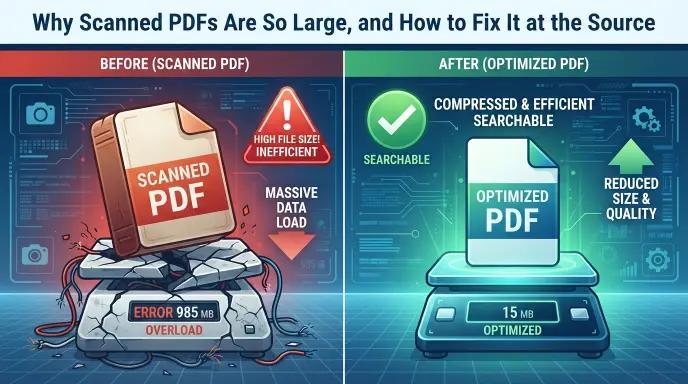
Why is my scanned PDF so large? Because your scanner doesn’t save words. It saves a photo of every page. A high resolution image of a letter size page, scanned at 300 to 600 DPI in full color with little or no compression, can easily weigh several megabytes on its own. Scan text documents at 150 to 200 DPI, switch to grayscale or black and white, and turn on compression, and most of that bulk disappears.
If this keeps happening to you, relax. You’re not doing anything wrong. Most scanners and phone apps ship with settings built for photos, not paperwork, so the files come out huge by default. A few quick changes fix it without making your documents hard to read.
What actually makes a scanned PDF so big
Think of a scanned PDF as a folder of pictures. When you scan a page, the machine has no idea there are letters on it. It just takes a picture and drops that picture into the PDF.
Three settings decide how heavy that picture gets.
Resolution (DPI). DPI stands for dots per inch. A standard 8.5 by 11 inch page scanned at 300 DPI comes out at 2,550 by 3,300 pixels, which is roughly 8.4 million pixels. Bump it to 600 DPI and you get four times as many pixels, so the file can grow four times bigger before any compression kicks in.
Color mode. Full color uses 24 bits for every pixel. Grayscale uses 8, and pure black and white uses just 1. So a plain black and white letter scanned in color carries three times the data it would in grayscale and 24 times what it would need in black and white.
Format. Some scanners store each page as an uncompressed image. Others use a lightly compressed JPEG. Either way, very little data gets thrown out, and the file stays big.
Put simply, more pixels times more data per pixel equals a bigger file. That’s why a ten page Word document exported as a PDF might be 200 KB, while the same ten pages scanned at 300 DPI in color can hit 30 to 50 MB.
Typical scan settings and their impact
Most home and office scanners, plus popular phone scanning apps, default to settings that are way more than a normal document needs.
| Setting | Common default | Better choice for text | Rough size impact |
|---|---|---|---|
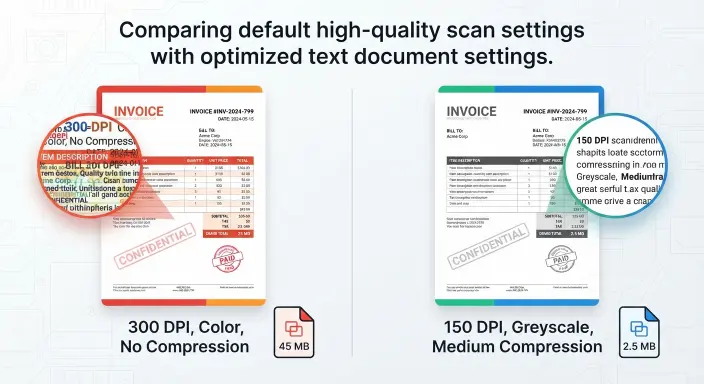
| Resolution | 300 to 600 DPI | 150 to 200 DPI for text, 300 DPI for small print or pages you want to OCR | Going from 600 to 300 DPI cuts pixels by 75 percent. Going down to 150 DPI cuts them by about 94 percent. |
| Color mode | Full color | Grayscale or black and white | Raw color data is three times the size of grayscale and many times larger than black and white. |
| Compression | Low or none | Medium or high JPEG for photos, CCITT Group 4 or JBIG2 for black and white text | Good compression can take a page from several MB down to a few hundred KB with no obvious quality loss. |
For everyday paperwork like contracts, invoices, bank statements and letters, 150 to 200 DPI in grayscale reads perfectly well on screen and on paper. You only need 300 DPI for tiny fonts, fine lines, pages you plan to run through OCR, or detailed image work.
Why “just compress it later” isn’t the whole story
A lot of guides tell you to throw the file into a PDF compressor and call it a day. That helps, sure. But it treats the symptom, not the cause.
Here’s the mistake I see all the time. Someone scans at a high DPI in full color, ends up with a 50 MB file, then tries to squeeze it down to 5 MB with a free online tool. The result is fuzzy text, weird smudges around the letters, and a document that looks sloppy when it lands in a client’s inbox.
Getting the settings right from the start pays off in three ways.
- The file is small from day one, so the compressor has far less to do.
- Text stays sharp, because you aren’t fighting noise and extra detail.
- Uploads and downloads finish faster, so your whole workflow speeds up.
If you control the scanner, fix the settings first. Save the compressor for final polish, not emergency surgery.
5 easy ways to reduce scanned PDF size at the source
1. Lower the DPI before you scan
Open your scanner software or phone app and look for a setting called Resolution, Quality or DPI.
- Text heavy documents look great at 150 to 200 DPI.
- Forms, receipts and anything with small print need 200 to 300 DPI.
- Photos inside a document are usually fine at 300 DPI.
Skip 600 DPI unless you really need it, say for archiving artwork or very fine technical drawings.
2. Pick the right color mode
Before you hit scan, ask yourself one thing. Does this page actually need color?
- Letters, contracts, invoices and tax paperwork work well in grayscale or black and white.
- Pages where color means something, like highlighted sections, color charts or official seals, need color, but still at a sensible DPI.
Switching a black and white letter from color to grayscale can shrink the file dramatically, and nobody will notice the difference.
3. Turn on compression
Most scanner drivers hide a compression or image quality option somewhere in the settings.
- For grayscale or color scans, choose medium or high JPEG quality.
- For pure black and white text, CCITT Group 4 or JBIG2 are extremely efficient.
If your app only offers Low, Medium and High, Medium is usually the best balance for documents.
4. Crop and clean up the scan
Phone scans are the worst offenders here. Desk edges, shadows and background clutter all add pixels you don’t need.
- Crop tight to the edges of the page.
- Delete any blank pages.
- Scan pages one at a time instead of fitting several into one giant image.
Less clutter means fewer pixels and less noise, and compression works better on clean pages.
5. Add an OCR text layer where it helps
OCR (optical character recognition) reads the text in your scan and makes it searchable. It won’t usually shrink the file by itself, but it makes the PDF far more useful.
- Some tools turn image heavy scans into a mixed text and image PDF, which is easier to search, index and archive.
- OCR works best on clean scans at around 300 DPI, so don’t drop below 200 DPI on pages you want to search. The Tesseract OCR documentation explains why resolution matters so much. The text layer itself adds very little to the file size.
Most modern scanner apps and desktop PDF tools have an OCR or “Make text searchable” button.
When to compress after scanning
Even with good settings, you’ll still get oversized PDFs now and then, especially files someone else scanned and sent your way.
When that happens, keep two things in mind.
- Use a compression tool that lets you choose the target DPI and image quality.
- Avoid tools that simply save the file again at the same quality. Look for options like “reduce file size” or “optimize for web.”
If you handle a lot of scans, set up one standard preset, for example 200 DPI, grayscale and medium JPEG, and use it every time.
How large scans cause problems with email, portals and daily work
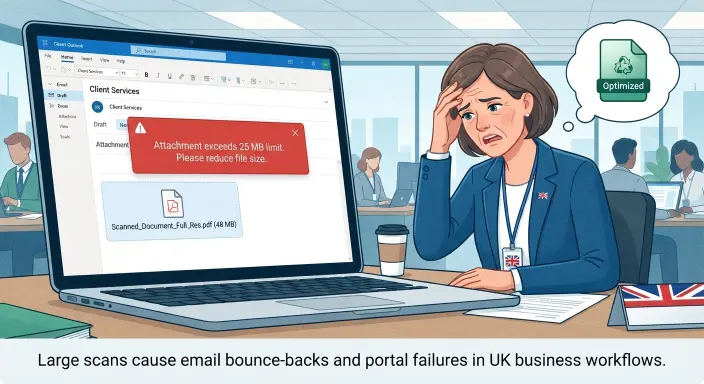
Big files break things. Gmail won’t send attachments over 25 MB and swaps them for a Google Drive link instead, and many other email services set similar limits. Mortgage lenders, insurance companies, court electronic filing systems and government portals often set their own upload caps, and those vary a lot from one system to the next.
So a 30 MB scanned contract might run into trouble in a few ways.
- It bounces back from your client’s inbox.
- It fails to upload to a lender, insurer or procurement portal.
- It slows down your own document management system.
Keeping each document down to a few megabytes makes everyday paperwork smoother, whether you’re sending tax documents to your CPA or filing an insurance claim.
Where xyconvert can help
If your business still runs on paper, a better scanning setup can save you hours every year. We help businesses review their document workflows, from scanner settings to how files get named, stored and shared. Want us to take a look at how your team scans and sends documents? Get in touch, and we’ll suggest simple changes that fit the way you already work.
FAQs
Why is my scanned PDF so large compared to a normal PDF?
A scanned PDF stores every page as a picture. A normal PDF, like one exported from Word, stores text as characters with embedded fonts. One page of normal text might take a few kilobytes, while the same page scanned at 300 DPI in color can take several megabytes.
What DPI should I use to keep scanned PDFs small but readable?
For regular text documents, 150 to 200 DPI is plenty for reading on screen and printing. For forms, receipts, tiny print or pages you want to OCR, go with 200 to 300 DPI. Save 600 DPI for special jobs like detailed artwork or technical drawings.
Does scanning in black and white really make a difference?
Yes, a big one. A black and white scan uses 1 bit per pixel, compared with 8 for grayscale and 24 for color. For text pages, switching from color to black and white can cut the file size by ten times or more, and the text stays just as easy to read.
Why are PDFs scanned on my phone bigger than desktop scans?
Phone apps often capture the whole camera frame, including your desk, shadows and the edges of the page, then save it as one large image. Many also default to high resolution and light compression. Cropping tightly and lowering the quality setting usually shrinks these files a lot.
Can I reduce the size of an existing scanned PDF without rescanning?
Yes. A PDF compression tool can downsample the images and apply stronger compression. You won’t get results quite as clean as scanning correctly in the first place, but you can often cut the file size by 70 to 90 percent and still read every word.
Is there a downside to making scanned PDFs too small?
There is. Push the compression too hard or drop the DPI too low, and text starts to look blocky, fine lines vanish and small print gets hard to read. Aim for the lowest settings that still give you crisp text at 100 percent zoom and on a printed page.
The bottom line is simple. Get your scan settings right at the start and your PDFs stay small without any extra effort. After that, a little compression and a consistent routine take care of the rest.