
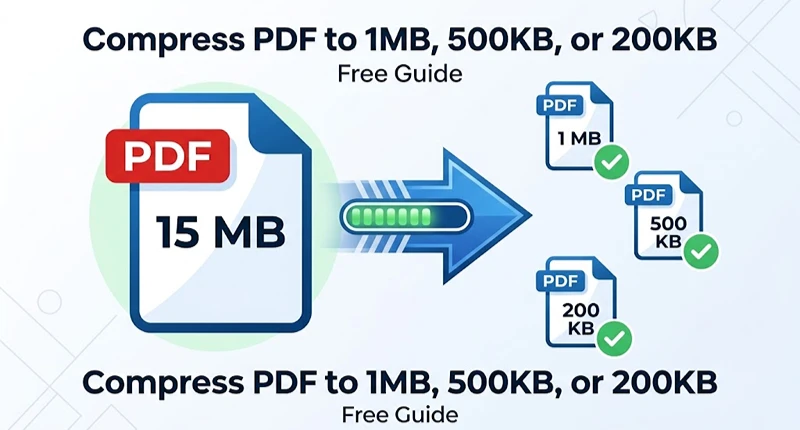
Need to compress a PDF to 1MB or smaller? Upload it to a free online compressor, pick your target size, and download the result. That’s really it. Most tools shrink files by cutting down embedded image resolution and recompressing photos, and for a photo heavy PDF, that alone usually gets you under 1MB on the first try without any visible drop in quality.
Why Is Your PDF So Big in the First Place?
Text almost never bloats a file. It’s the images doing the damage. Photos saved at print resolution, not screen resolution. Fonts embedded in full, not trimmed to the characters you used. Scanned pages, which are just photos of paper dressed up as documents. A ten-page contract with a couple of logos might weigh 300KB. Scan that same contract on an office copier at 300 dpi and suddenly you’re looking at 15MB, because now every page is a full size image instead of text.
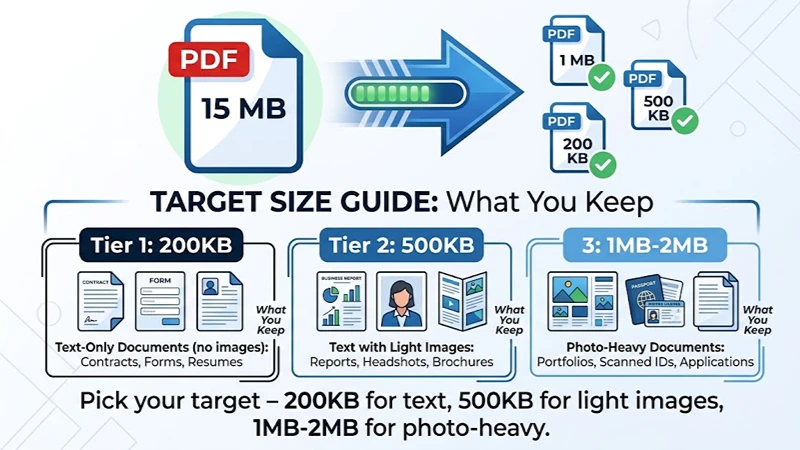
That gap matters a lot when you’re picking a target size. A text heavy PDF drops to 200KB without much effort. A stack of scanned pages? That might fight you the whole way to 2MB.
Pick Your Target Based on Where the File Is Going
| Target Size | Good For | What You Keep |
|---|---|---|
| 200KB | Simple contracts, single page forms, resumes with no images | Full text sharpness, minimal image detail |
| 500KB | Multi page reports, resumes with a headshot, short brochures | Readable images, slight softening on fine detail |
| 1MB to 2MB | Portfolios, scanned ID documents, multi page applications | Photo quality mostly intact |
Government and school portals are where the size limit actually bites, and here’s the thing, there’s no single national rule. Northern Illinois University caps each uploaded file at 10 MB for graduate admissions. It tells applicants scanning paper documents to use 300 dpi or lower. Larger scans often fail to upload. Federal courts are all over the map too. The Western District of Wisconsin allows 35 MB per PDF. The Northern District of Florida still holds attorneys to 5 MB per file. The Western District of Washington now lets you go up to 100 MB on a single document. Three courts, three completely different numbers. So check the actual limit on whatever portal you’re dealing with. Don’t just assume 1MB is the safe number.
Email works differently too. Gmail’s sending limit for a personal account is still 25 MB. Google confirmed in a 2026 Workspace update that only Enterprise Plus accounts can send up to 50 MB. Outlook personal accounts cap out lower, around 20MB. If you’re emailing rather than uploading to a portal, you’ve probably got more breathing room than a 1MB target gives you, so compressing that aggressively isn’t even necessary half the time.
What’s Actually Happening When a Tool “Compresses” Your File?
Compression tools pull on a few levers. They downsample image resolution, so a 300 dpi photo becomes 150 dpi, which cuts the size roughly in half with barely any visible change on screen. They recompress images using more aggressive JPEG settings. And they strip out data you never see anyway, old edit history, hidden layers, duplicate fonts sitting in the file for no reason. None of this touches your text. That’s why a text heavy PDF can go from 3MB down to 150KB with zero visible difference, while a scanned photo album barely budges.
Two Things That Break During Compression
A digitally signed PDF, the kind used in plenty of US court filings and HR paperwork, will usually lose its valid signature the moment you compress it. Why? Because the signature is tied to the file’s exact byte content, and compression changes that content. Sign after you compress, never before. Password protected files have their own problem, most compressors can’t even open them to shrink them, so the password has to come off first.
When Compression Just Won’t Hit Your Target
Trying to squeeze a 40 page scanned document into 500KB? Most tools will hit a wall long before you get there, and pushing past it just turns your text into mush. At that point you’ve got three honest options: rescan at a lower resolution, split the document into smaller files if the portal allows multiple uploads, or run OCR so the scanned image becomes actual searchable text, which weighs a fraction of what the image did.
And if what you’re compressing is sensitive, a passport scan, a tax return, a signed contract, think twice about where you’re uploading it. Some free compressors, xyconvert’s own compress PDF tool included, run the whole process in your browser using JavaScript, meaning the file never actually leaves your device. Worth checking before you hand anything private over to a random server.
Frequently Asked Questions
Will compressing a PDF reduce its quality?
Text stays exactly as sharp as it was. Images can soften a bit depending on how hard you compress, but most tools show you a preview before you commit to the download.
How do I hit an exact target size like 500KB?
Look for a tool that lets you type in a specific number instead of just choosing high or low compression. It’ll run through the file, sometimes a few times, until it lands close to what you asked for.
Why are PDF files so large in the first place?
Nine times out of ten, it’s the images. High resolution photos, scanned pages, embedded fonts, these add far more weight than plain text ever will.
Is it safe to upload sensitive PDFs to an online compressor?
Check whether the tool processes the file in your browser or ships it off to a server, and whether it says files get deleted after your session ends. For anything with personal or financial details, browser based processing is the safer bet.
Can I compress a password protected or signed PDF?
Remove the password first, since most compressors can’t read a locked file at all. And compress before you sign, not after, because signing locks in the file’s exact content.
What if my PDF still won’t get under the limit?
Split it into smaller files if the portal takes multiple uploads. Rescan at a lower resolution if it’s a scanned document. Or run OCR to turn those scanned pages into searchable text, which is dramatically lighter than an image of the same page.
Next Steps
Before you compress anything, go check the actual size limit on whatever portal, form, or email service you’re dealing with, it varies more than most guides let on. Need a quick pass? xyconvert’s compress PDF tool handles it in seconds. And if you end up splitting a big document into pieces first, the split PDF tool or the merge PDF tool to stitch a compressed set back into one file are right there when you need them.